




For ten years, "Figma to Shopify" meant the same thing: someone draws the store in Figma, then a developer or a plugin translates it into a Shopify theme or a Shopify page builder. The design was the easy part. The translation was where the time, the money and the mobile layout went.
That translation step is disappearing. With Claude Design and the PageFly connector for Claude, the design you approve becomes a real, editable Shopify page, built for you and left unpublished until you say go. We rebuilt the pagefly.io homepage this way in two working days. This guide explains the workflow, how to prompt Claude Design for a Shopify page (with a fashion and apparel example), how it compares to Figma to Shopify, and where it still falls short.
要点
- The idea: in Figma to Shopify, the design file is the handoff. In Claude Design to Shopify, the design is a conversation that ends on a live page.
- The flow: brief, design in Claude Design, read the design back as a section list, build it in PageFly through Claude, review, publish yourself.
- The output: native PageFly elements (headings, images, buttons, text), not a pasted block of code, so you can still edit, A/B test and track the page later.
- The demand shift: in Google Keyword Planner, "figma to shopify" fell 66% year over year, while "claude shopify" grew 2,850% (US, UK, CA, AU, measured October 1, 2026).
- The prompt matters most: a 7-part brief (store, goal, audience, output, sections, rules, images) gets a design that rebuilds cleanly. We show one for a fashion and apparel store, with screenshots.
- The rule: AI designs and builds. A person reviews and clicks Publish.
On this page
- What is Claude Design to Shopify?
- Why Figma to Shopify was always a translation job
- Figma to Shopify vs Claude Design to Shopify
- How to go from Claude Design to a live Shopify page
- How to prompt Claude Design for a Shopify page
- What we learned rebuilding pagefly.io this way
- Why the page builder still matters
- What this workflow can't do yet
What is Claude Design to Shopify?
Claude Design to Shopify is a workflow where you design a store page in Claude Design, Anthropic's AI design tool, and then have Claude build that design as a native, editable Shopify page through the PageFly connector, without exporting code or hiring a developer.
It has three parts:
- Claude Design turns a brief into a visual layout you can review and adjust. Anthropic launched it on April 17, 2026 for Claude Pro, Max, Team and Enterprise subscribers, and it exports to Canva, PDF, PPTX, standalone HTML or a Claude Code handoff bundle. None of those exports is a Shopify page.
- The PageFly connector for Claude closes that gap. It lets Claude create pages, add sections and preview them inside your live theme in your PageFly account.
- You make the calls an AI shouldn't make: which offer leads, which proof goes first, and when the page goes live.
If you know "Figma to Shopify", think of this as the same job with the slowest step removed.
Why Figma to Shopify was always a translation job
A Figma file is a picture of a page. Shopify needs a working page. Getting from one to the other has always taken one of three routes:
- A developer codes it. The design is rebuilt by hand as theme sections in Liquid. Accurate, but every later change goes back to the developer (the same trade-off we saw when we tested vibe coding on Shopify).
- A Figma-to-Shopify plugin converts it. Plugins such as Instant's import Figma frames into a page builder. They work best when the file is prepared for them, with properly named layers, and their own guides still include a step to adjust the desktop, tablet and mobile layouts.
- An agency does both. Design and build in one contract, at agency prices and timelines.
Each route has the same weak point: the person who designed the page is not the person who builds it. Details fall through that gap, usually on mobile.
Search demand is moving from Figma to Claude
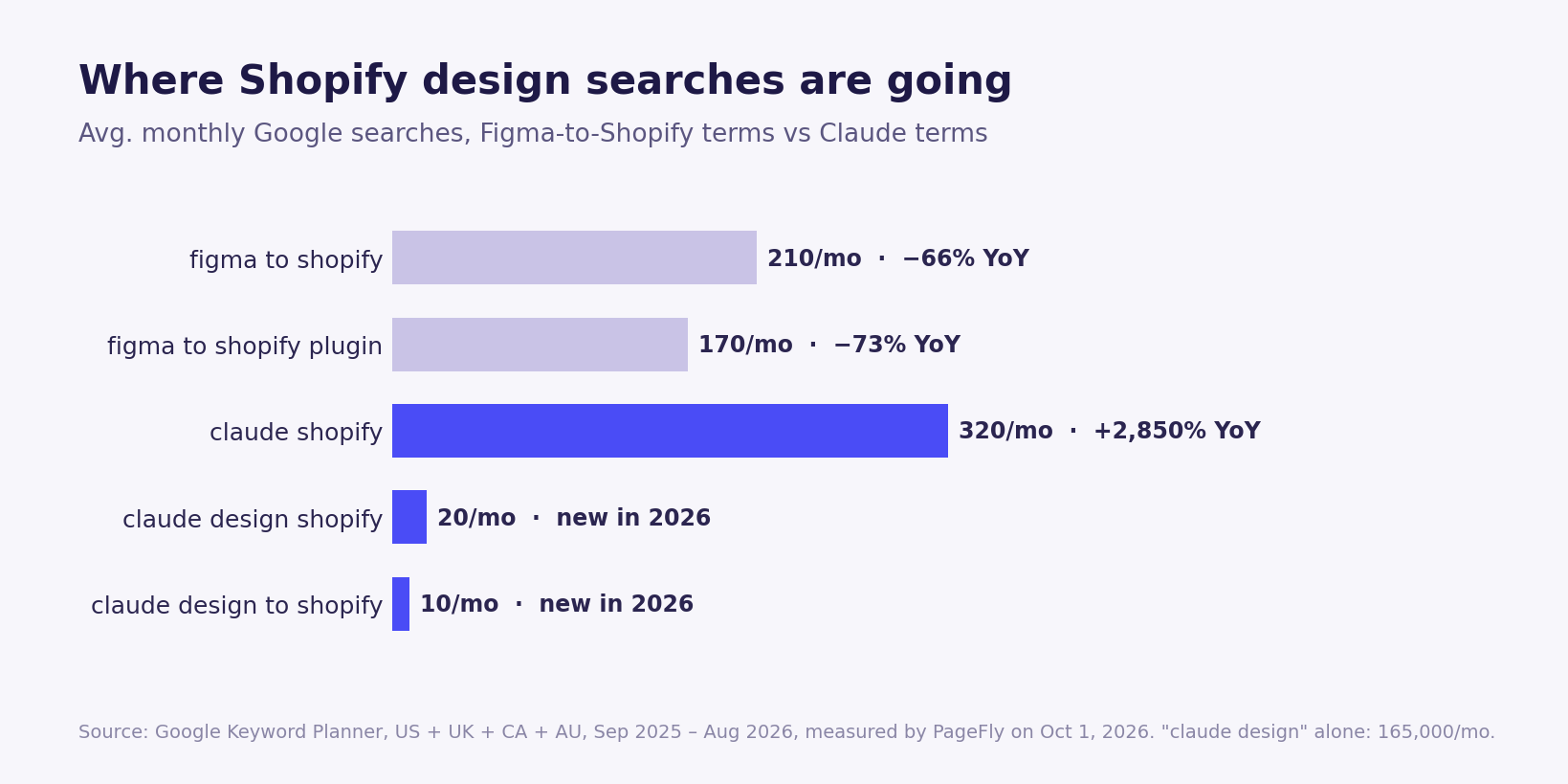
"Claude design" on its own averaged 165,000 searches a month in the same four markets. Most of those people are not Shopify merchants. But the merchants among them are asking a new question: not "how do I convert my design", but "can Claude just build it?"
Figma to Shopify vs Claude Design to Shopify
Here is how the routes compare on the things merchants actually ask about: skills, time, cost to start, and what happens after launch.
| Figma + developer | Figma + converter plugin | Claude Design + PageFly | |
|---|---|---|---|
| Where the design starts | A Figma file drawn by a designer | A Figma file prepared for the plugin | A written brief in plain English |
| The handoff | Figma file plus specs | Plugin import | The design read back as an ordered list of sections |
| Who builds it | A developer, in Liquid | The plugin, then you | Claude, through the PageFly connector |
| What lands in Shopify | Theme code | A page in that plugin's builder | An unpublished PageFly page made of native elements |
| Mobile layout | Built by the developer | Adjusted per breakpoint by hand | Designed desktop and mobile side by side; you check the preview at real screen sizes |
| Changes after launch | Back to the developer | In the plugin's editor | In the PageFly visual editor, or ask Claude to edit one element |
| Skills you need | Design + development budget | Figma skills | A clear brief and a careful review |
| To get started | Designer and developer time | Figma plus the plugin's plan | A paid Claude plan (Pro, Max, Team or Enterprise) plus PageFly; the connector works on every current PageFly plan, including Free |
| 最適 | Complex custom themes | Teams that already design in Figma | Merchants and marketers who want to go from idea to live page without a developer |
Figma isn't going away. If your team already has a design system in Figma, it's still the right tool for pixel-level work. But for a landing page, a Black Friday campaign page or a homepage refresh, the brief-to-page route is now shorter.
How to go from Claude Design to a live Shopify page
These are the steps we use. You need a Shopify store with PageFly installed and a paid Claude plan.
- Write the brief first. List the sections in order, a word cap for each, the products and images you already own, and every link the page must keep. A brief this specific is what stops the design from drifting. Need a structure to start from? Borrow one from these Shopify landing page examples.
- Design it in Claude Design. Paste the brief and ask for desktop and mobile side by side. Ask for sections simple enough to rebuild in a page builder: headings, text, buttons, images, cards. Then adjust the layout in conversation until you would sign it off. The prompting section below shows the exact brief we used for a fashion store.
- Read the design back as a section list. Ask Claude to describe its own design as an ordered list: section name, heading, copy, images, buttons. This list, not the picture, is the real handoff.
- Connect PageFly to Claude. Open the Claude Directory, search "pagefly", choose Connect to Claude, enter your store handle and approve access in your Shopify admin. The PageFly setup guide walks through each screen.
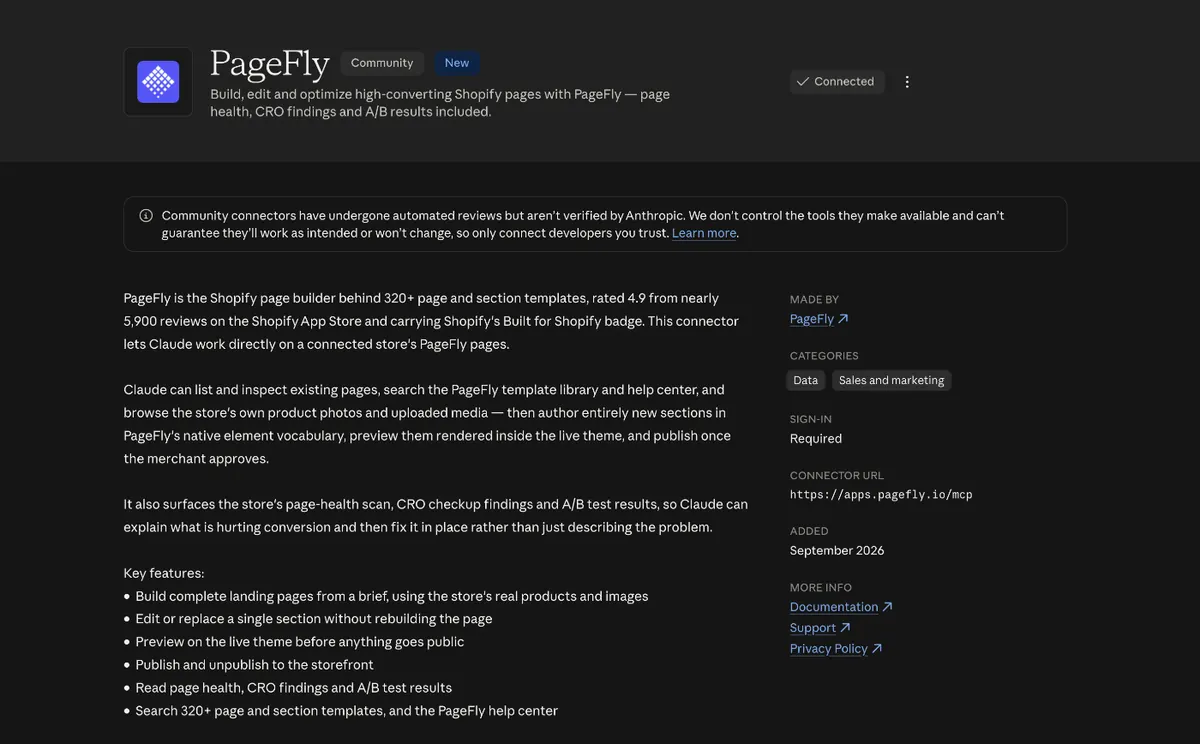
- Ask Claude to build the page, unpublished. Paste the section list and ask for a new page. Claude creates it, adds the sections one by one as native PageFly elements, and sends you a preview link rendered in your live theme.
- Review at real screen sizes, then publish yourself. Check the preview at 1920, 1366 and 390 pixels wide, not just the design canvas. Ask Claude to fix single elements in place, or edit them yourself in the PageFly visual editor. When it's right, publish.
Want the full connector walkthrough, including the ChatGPT setup? It's in how Claude builds a Shopify page in PageFly.
How to prompt Claude Design for a Shopify page
Claude Design builds what you describe, so the brief decides how much work is left for the Shopify build. A vague prompt ("make a nice fall landing page") gets you a pretty picture that no page builder can rebuild cleanly. A structured brief gets you a design that maps section by section onto native Shopify page elements.
We tested this on a fashion and apparel example (the niche behind many of the best Shopify clothing stores): a fictional store, Maple & Thread, launching a "Fall Layers" capsule for shoppers arriving from Instagram ads. The product photos are free stock images from Burst by Shopify, uploaded to our store's files first so Claude Design could load them by URL.
A Claude Design brief has 7 parts
| Part | What to write | Why it matters for the Shopify build |
|---|---|---|
| 1. Store and offer | Brand, what you sell, the campaign | Sets tone and copy without you writing every line |
| 2. Goal | One action: shop the capsule, join the waitlist | Every section gets judged against one button |
| 3. Audience | Who, and where they arrive from | "Mostly on mobile, from Instagram ads" pushes a mobile-first layout, which matters for conversion rate |
| 4. Output | Desktop 1440 and mobile 390, side by side | You review both layouts before anything is built |
| 5. Sections, in order | Numbered list, one job per section | This list becomes the build order in PageFly; borrow section ideas from these Shopify product page examples |
| 6. Rules | Builder-friendly blocks only, word cap, mark placeholders | Stops custom animation and invented facts that won't survive the build |
| 7. Images and style | Exact image URLs, palette, type | Real product photos instead of grey boxes; on-brand from the first draft |
The fashion and apparel brief we used
Store and offer: Design a Shopify landing page for Maple & Thread, an online apparel store launching its "Fall Layers" capsule.
Goal: get visitors to shop the capsule. Audience: women 25 to 40, mostly on mobile, arriving from Instagram ads. Output: desktop (1440) and mobile (390) side by side.
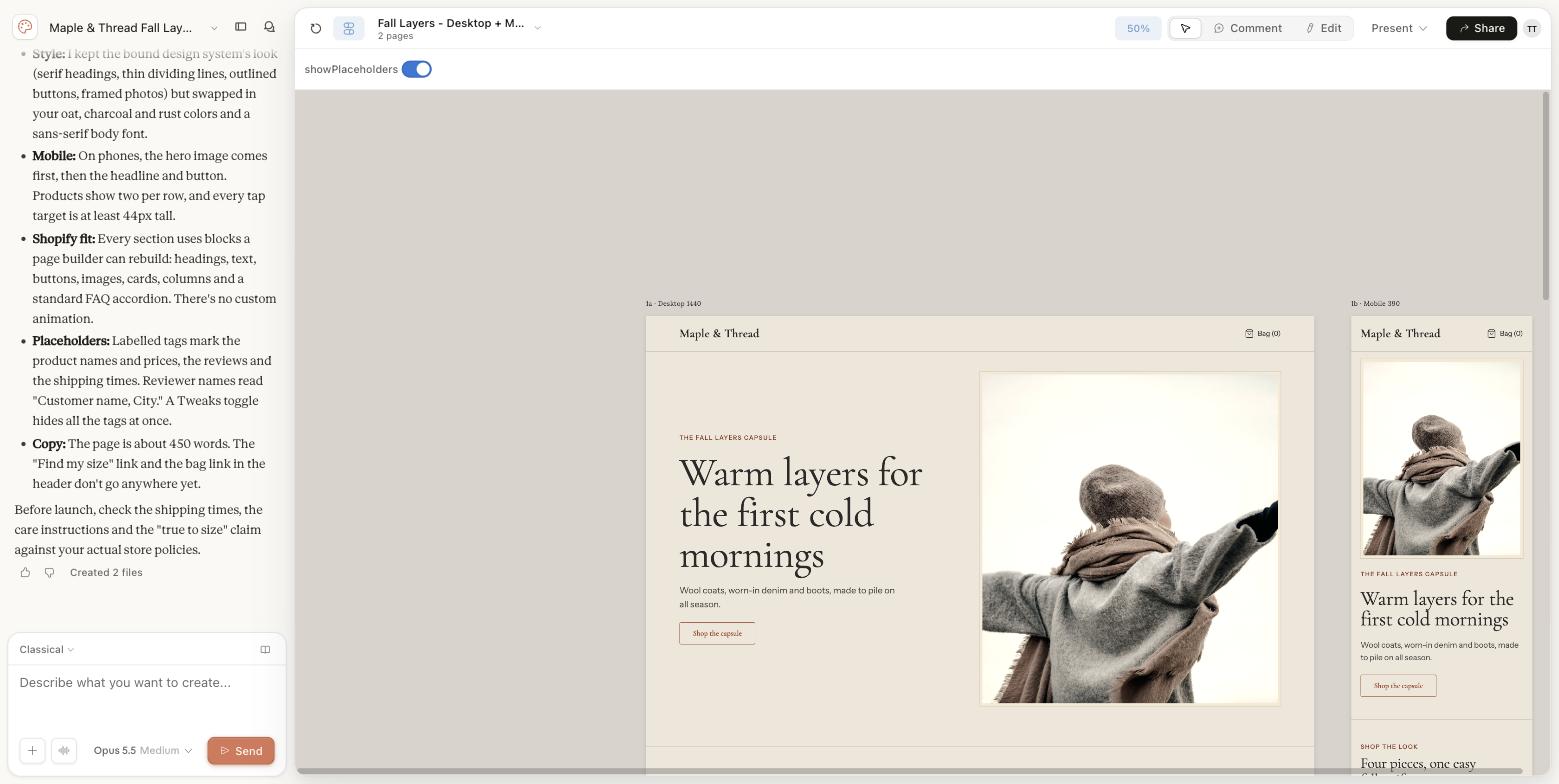
Sections, in this order: 1) Hero: headline of max 8 words, one-line subhead, a "Shop the capsule" button, image 1. 2) Shop the look: 4 product cards (name, price, Add to cart) using images 2 to 5. 3) Fit and fabric: 3 short columns (wool blend, true-to-size fit, free 30-day returns). 4) Size guide strip: XS to XL and a "Find my size" link (a real Shopify size chart cuts returns in apparel). 5) Reviews: 3 short quotes with star ratings, clearly marked as placeholder. 6) FAQ: 4 questions on sizing, shipping, returns and care (see how to write a Shopify FAQ page). 7) Final call to action with image 6.
Rules: only blocks a Shopify page builder can rebuild (headings, text, buttons, images, cards, columns), no custom animation, max 600 words, mark every placeholder.
Images: six exact image URLs, numbered 1 to 6. Style: warm neutrals (oat, charcoal) with one rust accent, serif headings, clean sans body.
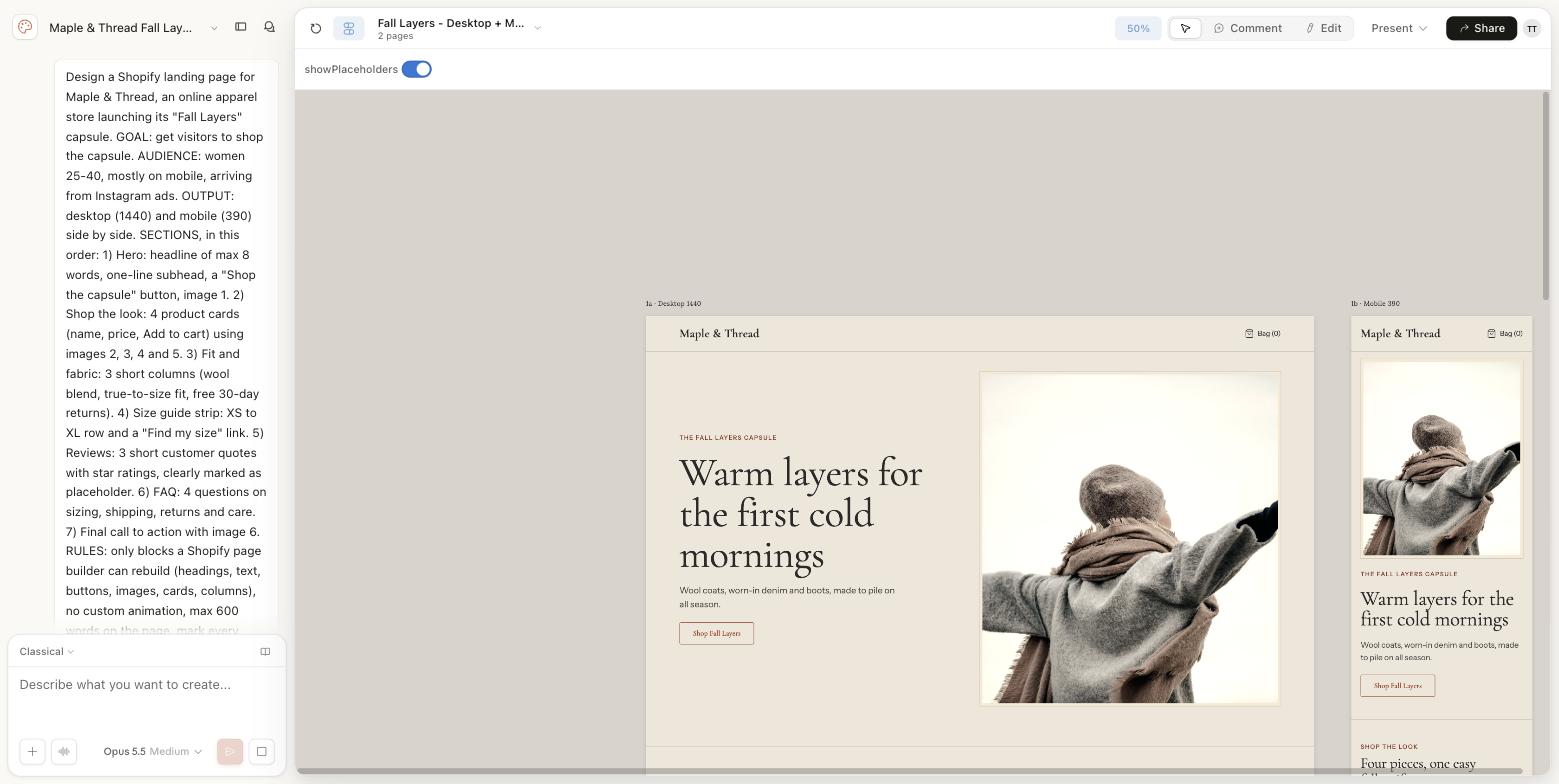
Claude Design answered with notes worth reading before you build: it kept every section to builder-friendly blocks, put the hero image first on mobile with products two per row, labelled the invented product names, prices, reviews and shipping times as placeholders, and reminded us to check the shipping times, care instructions and the "true to size" claim against real store policies.
Then iterate in short follow-up prompts
Don't rewrite the brief to fix one thing. Talk to Claude Design the way you'd brief a designer. Here are the two follow-ups we sent:
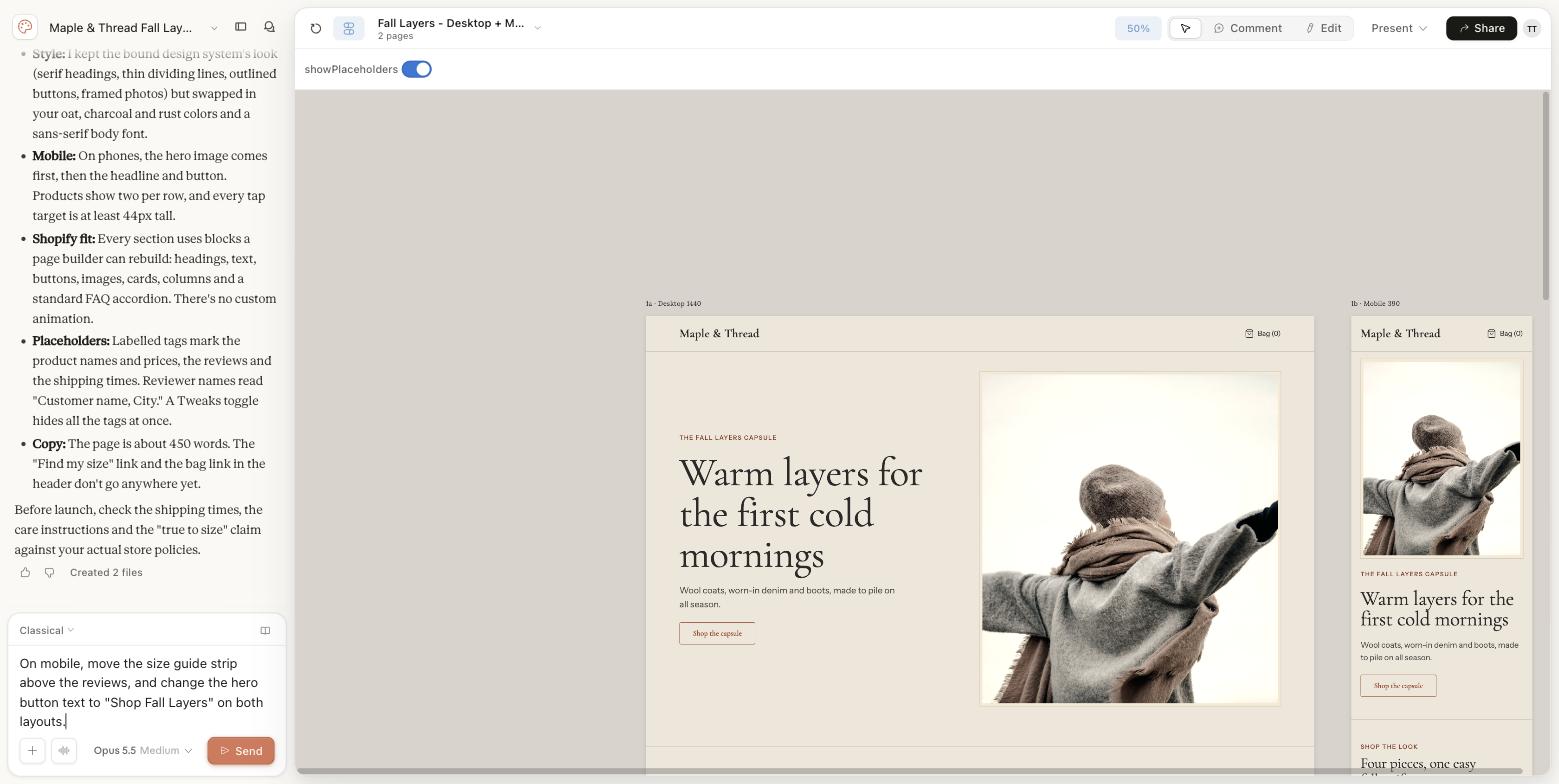
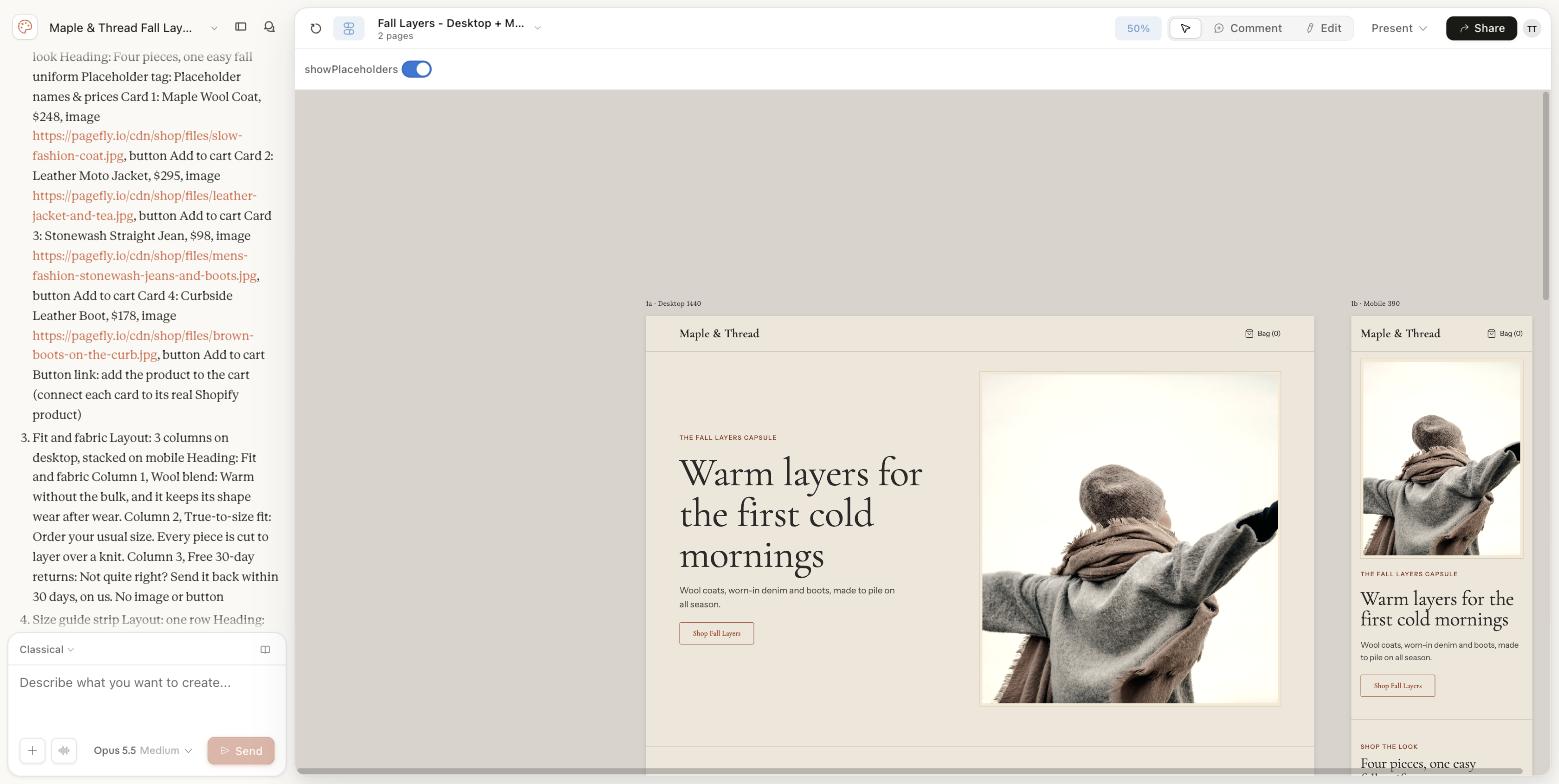
- One change per message. Our first follow-up was: "On mobile, move the size guide strip above the reviews, and change the hero button text to 'Shop Fall Layers' on both layouts." Claude Design changed the button on both layouts, and didn't move the size guide, because it already sat directly above the reviews. It said so and offered another spot instead of making a change we didn't need.
- Ask for the handoff. "Read this design back as an ordered list of sections for a Shopify page builder: section name, heading, body copy, image URL, button text and link. Plain text only, no code." We got 7 sections back, each with its layout on desktop and mobile, every image URL and alt text, and the style notes (colors, fonts, button style). That list is what you paste into Claude when the PageFly connector is on.
Three habits made the biggest difference:
- Give images as URLs, not uploads. Upload product photos to your Shopify files first, then paste the file URLs into the brief. The design, the built page and your product pages then use the same files.
- Ask for placeholders to be marked. Claude Design wrote product names, prices like $248 and review quotes for us. Because the brief asked for it, each one carried a placeholder tag, so nothing invented reaches your live page.
- Keep animation out of the brief. Anything that only exists as custom motion has to be rebuilt as custom code later. Native blocks stay editable and ready for A/B testing on Shopify.
What we learned rebuilding pagefly.io this way
We tested the workflow on the page that matters most to us: our own homepage. The full story, with every mistake, is in how I rebuilt our Shopify homepage with Claude in 2 days. The short version:

| メートル | Old homepage | New homepage |
|---|---|---|
| Time from audit to live page | n/a | 2 working days (Sept 21 to 22, 2026) |
| セクション | 13 | 10 |
| Words | 2,396 | 1,635 |
| Page weight | 620 KB | 410 KB |
| Internal links in the page body | 11 | 33 |
Three lessons carry over to any store:
- The design canvas is not your visitors' screen. Claude Design gave us a 1,440 px canvas. In our GA4 data, that width fit only about 25% of desktop visitors, and the most common screen was 1920×1080.
- "Looks right" needs a side-by-side check. Claude's first build matched our colors and fonts but not the picture: a hero off-center, card titles wrapping, images cropped. Compare each section to the design before you sign off.
- Keep the old page as a rollback. We built a new page and assigned it as the homepage, so the URL never changed and the old version stayed one click away.
Why the page builder still matters
Claude Design can already export standalone HTML. So why not paste that into Shopify? Because a pasted block of code is a dead end. You can't easily edit one headline, you can't A/B test it, and the next person on your team can't touch it without reading code.
When Claude builds through PageFly, the page is made of the same native elements you would drag in by hand. That keeps everything after launch working:
- Editing: change a headline or swap an image in the visual editor, or ask Claude to edit just that element.
- Testing: run A/B tests on the new page instead of guessing.
- Finding what to fix: heatmaps show where visitors click and scroll, AI Page Checkup flags issues on the page, and Claude can read those CRO findings through the same connector.
- Control: pages start unpublished, deletes go to PageFly's trash, and the connector reads no customer, order or payment data.
Prefer to stay inside Shopify admin? PageFly's AI Page Builder builds a page from a text prompt with FlyMate AI, and PageFly also works inside Shopify Sidekick.
You can also start from one of 320+ templates, then let the CRO Center tell you what to improve.
This is the shift for PageFly too. A page builder used to be where you placed every block yourself. Now it is also where an AI assistant builds, and where you keep control of what goes live, the same principle behind agentic commerce on Shopify.
What this workflow can't do yet
An honest list, as of October 1, 2026:
- It needs two subscriptions. Claude Design is only on paid Claude plans. PageFly's Free plan includes one published slot; more pages need a paid plan.
- It builds pages, not your whole theme. The connector works on PageFly pages. It doesn't touch theme code, checkout, orders, discounts or other apps.
- Complex animation still goes in as custom code. On our homepage, the animated demo pieces went in as custom HTML. Keep those blocks small so they stay editable.
- Someone still has to review. The build can look right at 1,440 px and break at 390. Budget time for a real review on real screens.
- It's a community connector. PageFly built it; it is listed in the Claude Directory, not made by Anthropic.
If you only need a fast page and don't need a custom design, skip Claude Design and start from a brief in PageFly's AI Page Builder. Comparing assistants first? See Sidekick vs ChatGPT vs Claude for Shopify. If you need a design you can see and approve first, this workflow is the shortest route we've found from idea to live Shopify page.
Try Claude Design to Shopify on one page
Pick one page you already want to improve, a landing page or a seasonal campaign, and run the six steps above. Keep it unpublished until you've checked it on your phone. PageFly is rated 4.9 from 5,897 reviews on the Shopify App Store (checked October 1, 2026) and carries the Built for Shopify badge.
Already using PageFly? Open the app, then connect it to Claude from the Claude Directory.
Claude Design To Shopify FAQ
Not directly. Claude Design exports to Canva, PDF, PPTX, standalone HTML or a Claude Code handoff bundle. To turn a Claude Design layout into a native Shopify page, connect PageFly to Claude and ask Claude to build the design as a new, unpublished PageFly page.
Seven parts: the store and offer, one goal, the audience and where they arrive from, the output sizes (desktop 1440 and mobile 390), a numbered list of sections, rules (builder-friendly blocks only, a word cap, mark placeholders) and the exact image URLs plus style.
Yes. Burst by Shopify photos can be used commercially without attribution under the Burst license. Upload them to your Shopify files first, then paste the file URLs into your Claude Design brief so the design and the built page use the same images.
Anthropic says Claude Design can build a design system for your team by reading your codebase and design files, so later projects use your colors, typography and components. The Shopify page itself is then built from the section list, not from the design file.
No. You write the brief, approve the design and review the preview. Claude builds the page from native PageFly elements, and you can edit any element later in the PageFly visual editor.
Claude Design is available on paid Claude plans (Pro, Max, Team and Enterprise). The PageFly connector works on every current PageFly plan, including Free, which includes one published slot.
No. Pages are created unpublished and only go live when you publish them or explicitly ask Claude to. Deleting a page moves it to PageFly's trash.
Claude previews the page rendered inside your live theme before anything goes public, so you can check how it looks with your store's header, footer and fonts.