




Merchants have started asking AI assistants to do the store work, not describe it. In the three months to 9 September 2026, PageFly’s own Google Search Console recorded merchants landing on pagefly.io from queries like how to link claude to shopify — a question that, until this month, had no real answer.
It has one now. Since September 2026, PageFly — a Shopify page builder behind 320+ page and section templates, rated 4.9 from nearly 5,900 Shopify App Store reviews and carrying Shopify’s Built for Shopify badge — is listed in the Claude Directory as a community connector. Connect it once and Claude can open the PageFly pages on your store, author new sections in PageFly’s own element vocabulary, preview them inside your live theme, and publish when you say so.
That is a different thing from an AI that gives you advice about your pages. The slow part of shipping a Shopify landing page was never the typing — it was the round trip between deciding what the page should say and getting it built. Your page builder now takes a brief, not a click path. You still approve every publish.
The short version
- PageFly is listed in the Claude Directory as a community connector, added September 2026, made by PageFly, sign-in required.
- It exposes 16 tools — Claude can list and inspect pages, search 320+ templates and the help center, browse your uploaded media and product photos, author new sections, preview on your live theme, and publish or unpublish.
- It also reads your page-health scan, CRO checkup findings and A/B test results, so Claude can explain what is hurting conversion and then fix it in the page.
- Access is scoped to the one store you approve in your own Shopify admin. New pages are created unpublished. The connector reads no customer, order or payment data.
- Works on every current PageFly plan including Free. Legacy pricing gets the basic tools only.
On this page
What is the PageFly connector for Claude?
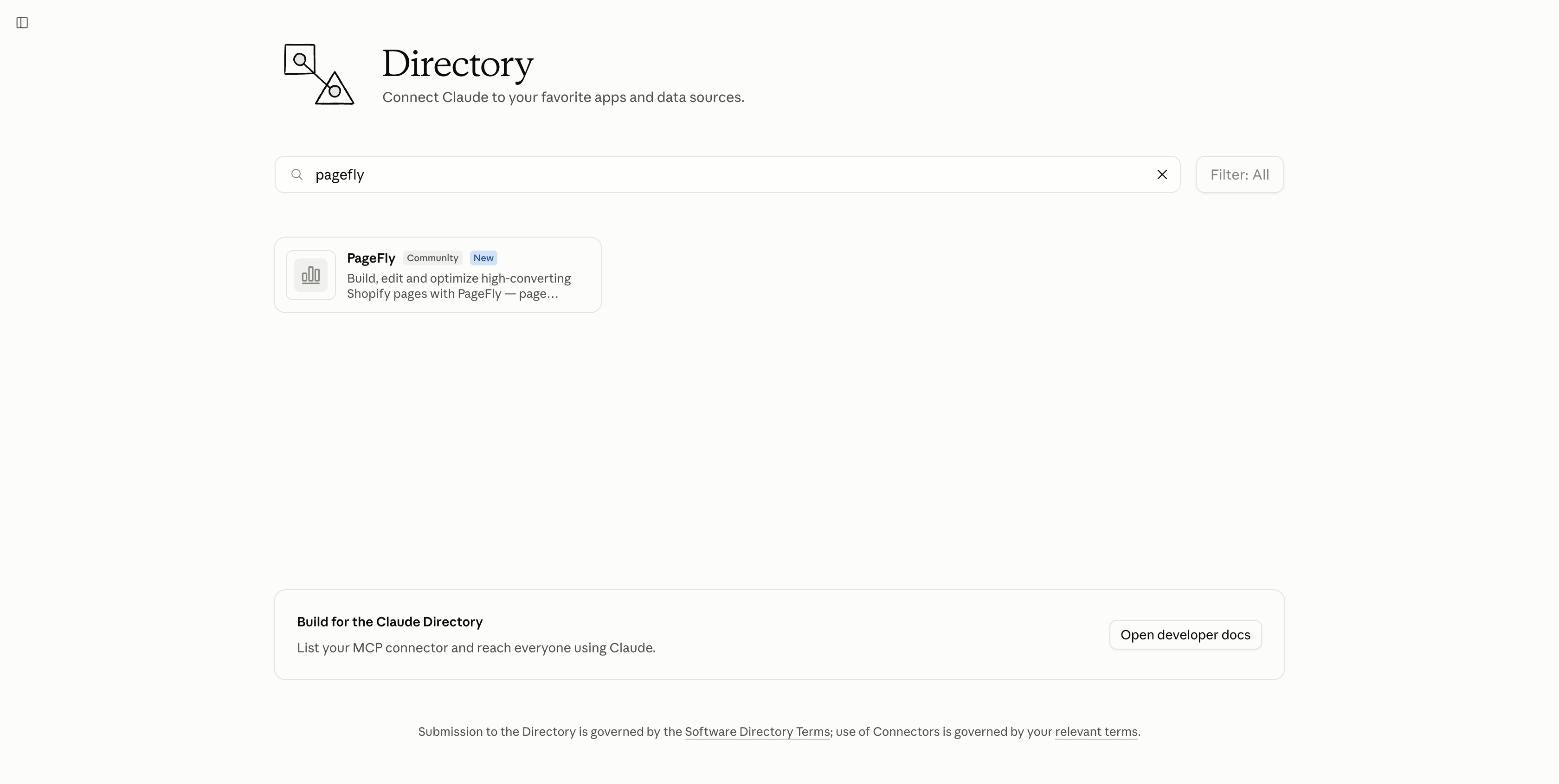
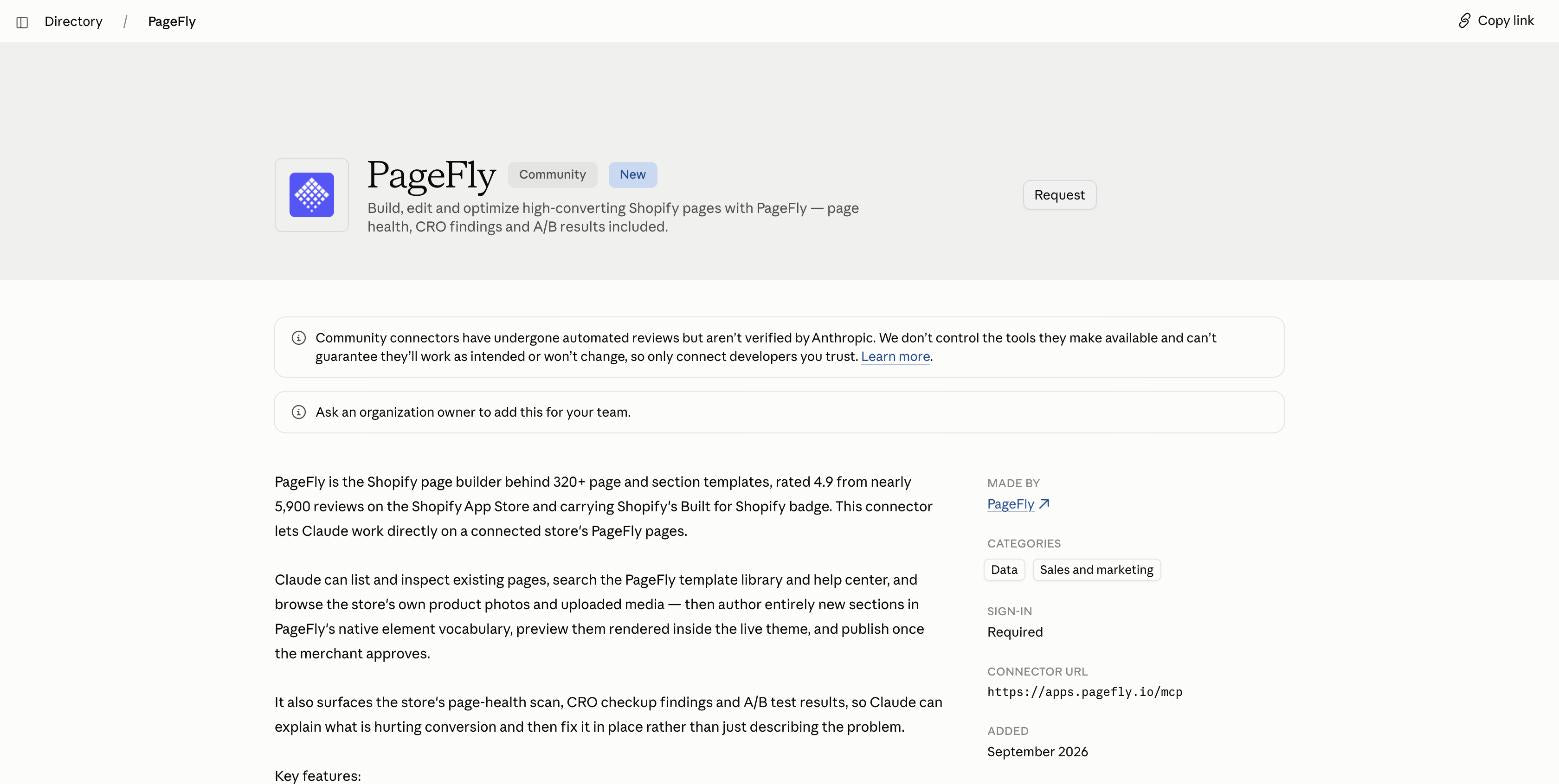
について PageFly connector for Claude is a Model Context Protocol (MCP) server, published in the Claude Directory since September 2026, that gives Claude a set of 16 tools for reading, building, previewing and publishing PageFly pages on one Shopify store you have approved. Its connector URL is https://apps.pagefly.io/mcp, it is labelled a community connector, and it requires sign-in.
MCP is the open standard assistants use to reach an outside system. That is why the same connector works in Claude and in other MCP-compatible clients rather than being a Claude-only feature — the same shift that put storefronts inside AI conversations in the first place, which we covered in our guide to Shopify agentic commerce.
What this is not
It is not a chatbot bolted onto the PageFly editor, and it is not a code generator. Claude writes in PageFly’s native element vocabulary, so what it produces is a real PageFly page you can open and keep editing by hand — not exported markup you inherit and maintain. If you have been weighing prompt-to-store tools, that distinction is the whole argument in vibe coding vs PageFly.
What Claude can actually do with your pages
Five prompts you can paste as-is once the connector is on. Each one names the tools that run behind it, because the tool list is the honest boundary of what the connector can do.
1. Build a Black Friday landing page from three products
What runs: get_page_authoring_guide, search_templates, list_shop_media, create_page, add_section, preview_page. 得られるもの an unpublished PageFly page, assembled section by section (up to 10), using your own uploaded media and product photos, with a preview link after each section so you can redirect mid-build. If you are timing this for the season, our Shopify BFCM checklist sets the deadlines.
2. Rebuild a hero section that is not working
What runs: get_page, add_section, preview_page. 得られるもの a replacement section authored in place, without rebuilding the page. One real limit, stated plainly: Claude authors new sections on pages it created — it does not reach into a page you built by hand in the editor and rewrite its elements. For those, Claude can inspect the page and tell you exactly what to change, and you make the change in the PageFly editor.
3. Ask why a page is converting badly
What runs: get_page, get_page_health, get_cro_findings. 得られるもの the actual findings from your store — broken links, missing images, the conversion issues surfaced by AIページチェックアップ — rather than generic advice. Claude will say it has no data if you have not run a scan yet, which is the correct answer. The reasoning behind those findings is in our CRO work.
4. Read an A/B test result and decide the next move
What runs: get_ab_test_results. 得られるもの the status and outcome of tests you ran with PageFly A/B testing, in the same conversation where you can act on them. This is the step most merchants skip: a finished test that nobody reads is a test that cost you traffic for nothing.
5. Find a template, preview it, then publish
What runs: search_templates, add_section, preview_page, publish_page. 得られるもの a search across 320+ page and section templates, a section added to the page, a preview rendered inside your live theme, and a storefront change only after you ask for it. Publishing uses your plan’s live-page allowance, not AI credits — the allowance for each tier is on PageFly pricing.
| What you ask for | Tools that run | What comes back |
|---|---|---|
| A campaign landing page from a brief | get_page_authoring_guide, search_templates, list_shop_media, create_page, add_section, preview_page | Unpublished page, up to 10 sections, your real products and images |
| A replacement section on a Claude-built page | get_page, add_section, preview_page | New section in place, no full rebuild |
| A conversion diagnosis | get_page_health, get_cro_findings | Your own scan results and CRO findings, explained |
| An A/B test read-out | get_ab_test_results | Test status, winning variant, next test |
| Template search and go-live | search_templates, preview_page, publish_page | Theme preview first, storefront change only on your word |
| Plan limits and upgrades | get_plan_status, create_upgrade_link | Live-page slots used, AI credits left, an upgrade link only if you agree |
| A how-to from the docs | search_help | The relevant PageFly help article |
How to connect PageFly to Claude
Three things before you start: PageFly installed on the store (any current plan, Free included — stores on legacy pricing get the basic tools only), a Claude account on any plan, and the ability to approve an app connection in that store’s Shopify admin.
- Search the Claude Directory. Open the Claude Directory, search
ページフライ, and click the PageFly result. - Open the listing and connect. The listing shows the connector URL, the 16 tools it exposes and who made it. Choose Connect to Claude.
- Enter your store name. Just the handle —
my-storeにとってmy-store.myshopify.com. - Approve access in your Shopify admin. This is the permission step, and it happens in your admin, not in Claude.
- Go back to Claude and ask it something small. “List my PageFly pages” is the fastest way to confirm the connection is live.
Two gotchas worth knowing before they bite. The setup link expires after 15 minutes, so if you walk away mid-connect you start again from the assistant. And in Claude Code the whole thing is one line: claude mcp add --transport http pagefly https://apps.pagefly.io/mcp. Full requirements, per-assistant setup and troubleshooting are in the AI Assistant Connector documentation, alongside PageFly’s other 統合.
What the connector can and cannot touch
An assistant that can publish to your storefront deserves a hard look at its permissions. Five facts, and they are the ones that matter:
- One store, approved by you. Access is scoped to the single Shopify store you approve inside your own Shopify admin.
- Nothing goes live by accident. Pages the assistant creates are unpublished, and stay unpublished until
publish_pageis explicitly called. - No customer data. The connector reads no customer, order or payment data. Checkout, discounts, inventory, admin settings, other apps’ data and other stores are all out of reach.
- An open standard, not a private tunnel. It speaks MCP, so you can see the tool list before you connect — it is printed on the listing.
- Revocable in two clicks. In PageFly, go to Preferences → Account → AI assistant connector and choose Disconnect all to revoke every token immediately. Do that before uninstalling PageFly, not after.
| Claude can read | Claude can change | Claude cannot reach |
|---|---|---|
| Page titles, types, published state and element structure; template names and previews; your Shopify Files, product photos and PageFly uploads; plan name and live-page slots; page health, CRO findings, A/B results; public help articles | Create pages (always unpublished); add sections to pages it created; publish and unpublish; generate an upgrade link after you agree | Customers, orders, checkout, discounts, inventory, Shopify admin settings, other apps’ data, PageFly billing details, payment details, and any other store |
Read the full breakdown in the connector’s data, permissions and security doc.
Claude, ChatGPT, Sidekick and FlyMate
The same connector works in ChatGPT on a paid plan with Developer mode enabled, and in any other MCP-compatible client — one endpoint, several assistants.
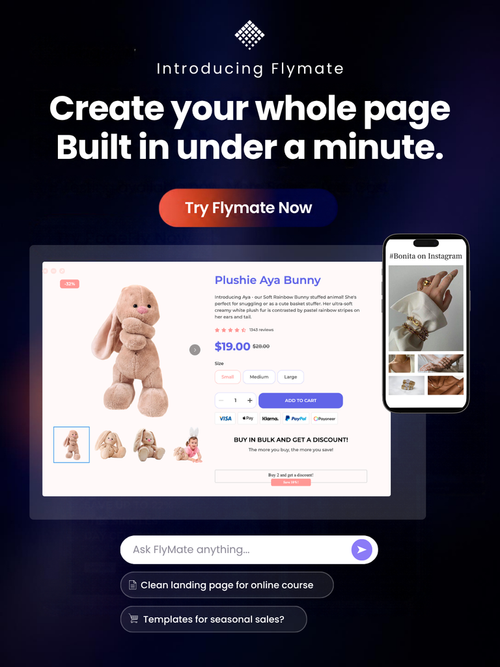
Where it differs from what you may already have: PageFly in Shopify Sidekick is read-only, so Sidekick reports on your pages, health scores and test results but cannot build one. FlyMate is PageFly’s own assistant inside the editor, working on the page in front of you. The Claude connector is the one that takes a brief in a chat window and comes back with a built page. If you are still deciding which assistant should run which job, we compared them in Sidekick vs ChatGPT vs Claude.
“Sidekick is there to proactively identify new ways to grow.”Vanessa Lee, VP of Product at Shopify, announcing the Winter ’26 Edition (shopify.com)
That is the direction the whole category is moving: assistants that find the work, not just describe it. The gap the PageFly connector closes is the last one — letting the assistant do the page, on a store where you still hold the publish button. It is the same argument we make about Shopify AI agents generally, and the practical starting point is still a page with a job: our guide to building a Shopify landing page that converts is what to brief Claude with.
Pagefly Claude Connector FAQ
It is a Model Context Protocol (MCP) server, listed in the Claude Directory since September 2026, that gives Claude 16 tools for reading, building, previewing and publishing PageFly pages on one Shopify store you approve. Its connector URL is apps.pagefly.io/mcp and sign-in is required.
Every current PageFly plan works, including Free. Stores still on legacy pricing get the basic tools only. Publishing a page uses your plan's live-page allowance, not AI credits.
No. Pages Claude creates are unpublished, and nothing reaches your storefront until the publish tool is called, which happens only when you ask for it. Claude previews the page inside your live theme first.
No. The connector reads no customer, order or payment data. Customers, orders, checkout, discounts, inventory, Shopify admin settings, other apps' data and any other store are all out of reach.
FlyMate is PageFly's own assistant inside the editor, working on the page open in front of you. The Claude connector works from a chat window outside Shopify: you brief a page in plain English, Claude builds it on your store, and you approve the preview before anything publishes.
Yes. The same connector works in ChatGPT on a paid plan with Developer mode enabled, and in any other MCP-compatible client. The connector URL is the same for all of them.