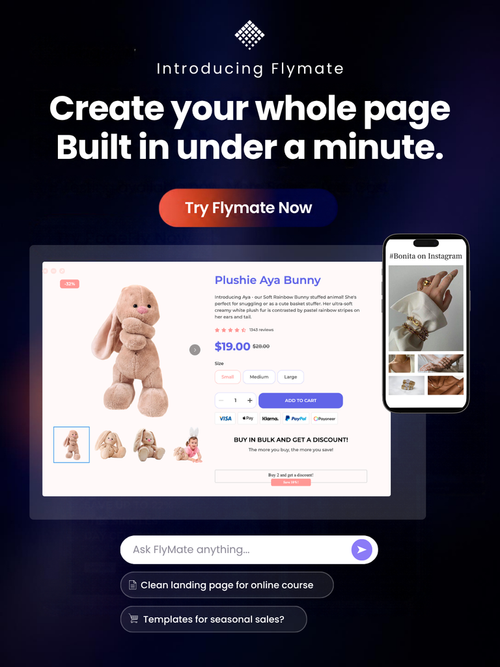





Updated September 22, 2026: Sidekick can now build a new PageFly page from the chat. We added how the build works, what it cannot do yet, and what to check when it does not start.
PageFly now plugs into Shopify Sidekick, so you can ask Shopify's AI assistant to build a new PageFly page, or ask about the ones you already have — what's published, your CRO scores and A/B test results — without leaving your admin.
Shopify's AI assistant can now read your PageFly pages, and build new ones.
Sidekick usage is climbing fast. Shopify says weekly active shops using Sidekick were up 4x year over year in Q1, and that Sidekick is "becoming where merchants run their business" (Spring '26 Edition, June 2026). The same Edition opened Sidekick to app developers and launched App Extensions with 15+ partners, including Klaviyo, Judge.me, Smile and Yotpo.
PageFly is now one of them. Which means the answer to "which of my landing pages are actually live?" no longer needs a second app — it is a page that can answer for itself, through the assistant you already have open.
要点
- PageFly works inside Sidekick in two ways: ask about your own PageFly pages from anywhere in your admin, or ask for a new page and watch PageFly build it.
- Building is new (September 2026). Sidekick reads the product, writes the brief, and opens the PageFly editor, where the page is built section by section. You get a landing page or a PageFly product page.
- Six tools, all tested first-hand. Four read your own store — your page list, page-health scan, CRO checkup findings and A/B test results. Two search PageFly's catalogs — the template library and the help center.
- Nothing goes live on its own. A built page is saved unpublished. Sidekick cannot edit a page you already have, and it cannot publish, unpublish or delete one. The six question tools are read-only.
- It is free with PageFly — no setup and no connection step. Asking questions costs nothing; building a page uses AI credits, the same as a FlyMate build.
- Sidekick returns up to 6 results per question, and returns nothing rather than guessing when a scan has not been run or your plan does not include that feature.
What is PageFly in Shopify Sidekick?
Sidekick app extensions are a way for a Shopify app to hand its own data to Shopify's built-in AI assistant, so Sidekick can answer questions about that app without the merchant leaving the conversation. Shopify splits them in two: data extensions, which are read-only, and action extensions, which change something and ask the merchant to confirm. Shopify's own guidance is blunt about the split — "Keep data extensions read-only" (Shopify developer docs).
PageFly now does both jobs. Its data extension answers questions: Sidekick can look at the pages you have built with PageFly, a Shopify page builder — landing pages, product pages, collection pages, any of your Shopify pages — summarise their state, and report what is wrong. But it never touches them. That is the whole idea behind a page that can answer for itself: the data walks to you instead of you walking to the data.
The build action is the one part that adds something to your store: a new, unpublished PageFly page, created only when you arrive in the PageFly editor.
New to Sidekick? What Shopify's AI assistant actually does
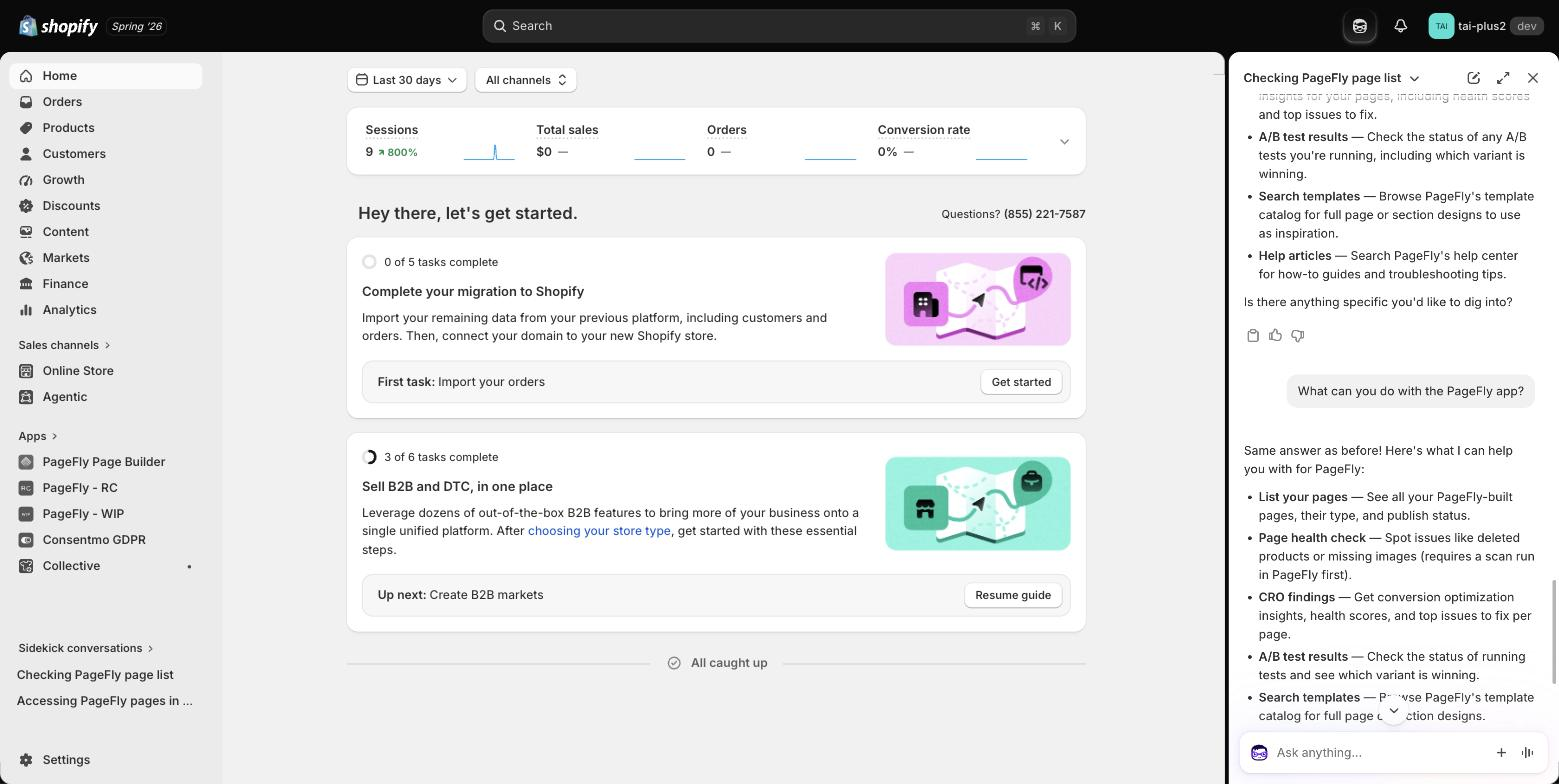
Shopify Sidekick is the AI assistant built into your Shopify admin. You open it from the icon in the admin top bar and ask questions in plain language instead of hunting through menus — it reads your store data, explains settings, and walks you through tasks. Since Shopify opened Sidekick to app developers in the Spring '26 Edition, it can also answer using data from the apps you have installed. That is the door PageFly walked through.
Two things worth knowing before your first question:
- It lives in the admin, not the storefront. Sidekick helps you run the store. It is not the chat widget your shoppers see.
- It answers from real data. Ask about your own store and Sidekick goes and reads it rather than generalising — which is exactly what makes an app integration useful instead of decorative.
Source: Learn With Shopify (Shopify's official channel) — the Sidekick walkthrough: where to find it in the admin and how to ask.
For a fuller picture of where Sidekick is strong and where it still falls short, read our Shopify Sidekick review. If you are weighing it against a general-purpose assistant, Sidekick vs ChatGPT vs Claude puts the three side by side.
Ask Sidekick to build a PageFly page
Ask Sidekick for a page and mention PageFly, and it hands the job to PageFly. For example, while you are looking at a product: "Create a landing page for this product with PageFly."
- Sidekick writes the brief. Before it opens PageFly, it reads the product you named (title, price, and what its description claims) and adds what you asked for in your own words. If one answer would change the page, such as who it is for or whether there is an offer, it asks you one question.
- PageFly opens. You see Preparing your page… for a moment, then the PageFly editor opens with the AI assistant panel.
- The page builds in front of you. PageFly plans the page, then adds each section to the canvas one at a time, naming each one as it goes.
- You publish. Change anything you like in the editor, then publish when you are happy with it.
Change it while it builds. You do not have to wait for the finish. Tell Sidekick "add a customer reviews section" or "make it feel more premium", and it passes the change to the page you have open. You can type the same thing into the PageFly assistant panel.
Say more, fix less. PageFly plans from the brief, so mention who the page is for, what it should do, what must appear (a discount, a guarantee, free shipping) and the tone you want. You do not need to list sections: PageFly picks the structure from its own conversion rules, and you can add, remove or reorder anything afterwards.
| Question | 回答 |
|---|---|
| Which pages can it build? | A landing page that sells a product, or a PageFly product page for it. Build home, collection and blog pages in the PageFly editor. |
| Does the page go live? | No. It is saved unpublished. It is created when you arrive in the editor, not when you ask, so changing your mind in Sidekick adds nothing to your page list. |
| AI credits? | Used exactly as in a FlyMate build. If you run out mid-build, PageFly offers a top-up in the assistant panel. |
| Another version? | Ask again and you get a separate page. The first one stays untouched. |
| Can I leave while it builds? | Keep the tab open until it finishes. Sections already built are saved as it goes. |
| Edit a page I already have? | Not from Sidekick. Open the page in the PageFly editor and ask FlyMate to edit its sections. |
If the build does not start, the PageFly in Shopify Sidekick help article lists each message and the fix. Using Claude or ChatGPT instead? The same kind of build works through the PageFly connector for Claude.
What you can ask Sidekick about PageFly
Six read-only tools answer your questions, in two groups. Ask in plain language — Sidekick picks the tool. It covers every page type you build, from a campaign landing page to a product page.
Four that read your own store
| Ask Sidekick | What comes back | Needs |
|---|---|---|
| "What PageFly pages do I have?" | Page title, page type (page / product / collection / blog), published or not, last updated | PageFly installed |
| "Are my pages healthy? What should I fix?" | Your latest page-health scan: pages scanned, total issues, and the pages with the most issues — deleted products, missing images | A scan already run in PageFly |
| "How can I improve conversions on my pages?" | Per page: health score, number of critical issues, and the top issue to fix | A CRO checkup already run; feature included in your plan |
| "How is my A/B test going? Which variant is winning?" | Each test's status (live or complete), the goal metric, win probability, and which side is ahead | At least one A/B test set up |
Two that search PageFly's catalogs
These two never touch your store. They search PageFly's public template library and help center, so they work before you have built anything at all.
| Ask Sidekick | What comes back | Needs |
|---|---|---|
| "Show me PageFly landing page templates for a sale" | Up to 6 templates, each with a name, a one-line description and a link to open it. Add "section" to search section templates instead of whole pages | Nothing |
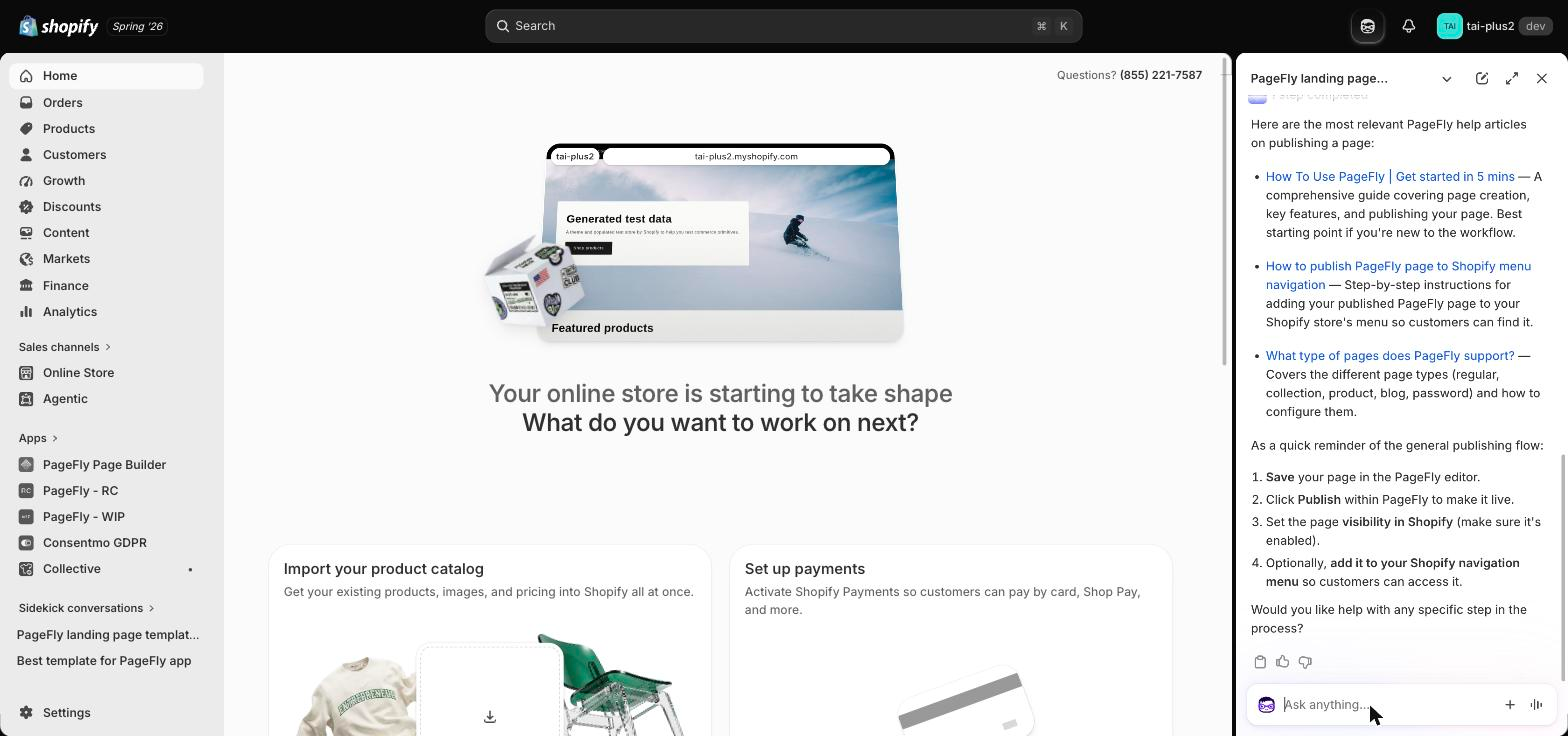
| "How do I publish a PageFly page?" | The matching PageFly Help Center articles, with links — plus Sidekick's own summary of the steps | Nothing |
Asking for sale templates on our test store returned six — Sales Promotion - Valentine, Olis - Singles' Day, Halo, Teki - BFCM, Denka and Teaser - BFCM — each with a description and an opening link. Sidekick then narrowed it down on its own: because the store sells electronics, it flagged the three electronics-focused templates as the best bets. That is the difference between a search box and an assistant that has read your catalog.
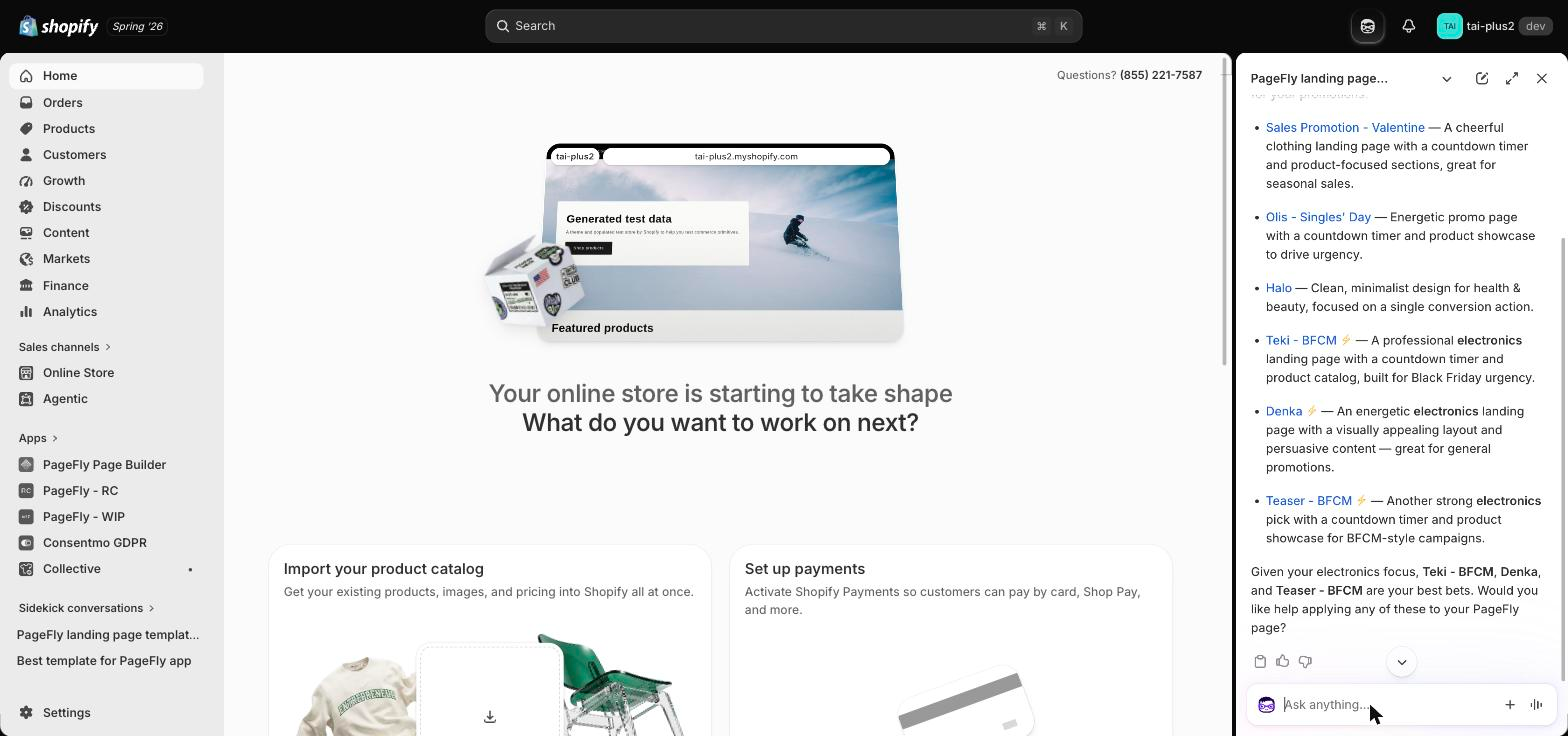
The help search behaves the same way: ask a how-to question and you get the real Help Center articles rather than a generic answer.
Constraints, answered
Merchants do not ask "does it have feature X". They ask "does it work on my plan, on my store, today". So:
| Question | 回答 |
|---|---|
| Extra cost? | No. It comes with PageFly. Building a page uses AI credits, the same as FlyMate. |
| Setup needed? | None. No connection step — just approve Sidekick's one-time permission prompt the first time you ask. |
| Where does it work? | Anywhere in your Shopify admin where Sidekick is available. |
| Skill level? | No code. Plain-language questions. |
| Does it change my store? | Asking never does — every question tool is read-only. Only a build request adds something: a new, unpublished page. |
| How many results? | Up to 6 per question. Ask a narrower question for a narrower answer. |
| Whose data? | The page list, page health, CRO findings and A/B tests are your store's. Templates and help articles come from PageFly's public catalogs. |
| Works on a brand-new store? | Yes for templates and help search. The other four need pages, a scan, a checkup or a test to exist first. |
| What if there is no data? | Sidekick says so. It does not invent a score. |
The same idea drives the PageFly visual editor — fewer clicks between a question and the page itself.
What we found testing it first-hand
We ran this on our own Shopify Plus test store, from the admin Home page, with PageFly installed.
Asking "What PageFly pages do I have?" returned both pages by name, with publish status and page type — and Sidekick added something the raw data did not: it noticed the second page was a clone of the first and offered to publish it. That is the part that is easy to miss about a data extension. Sidekick does not just print the rows; it reasons over them.
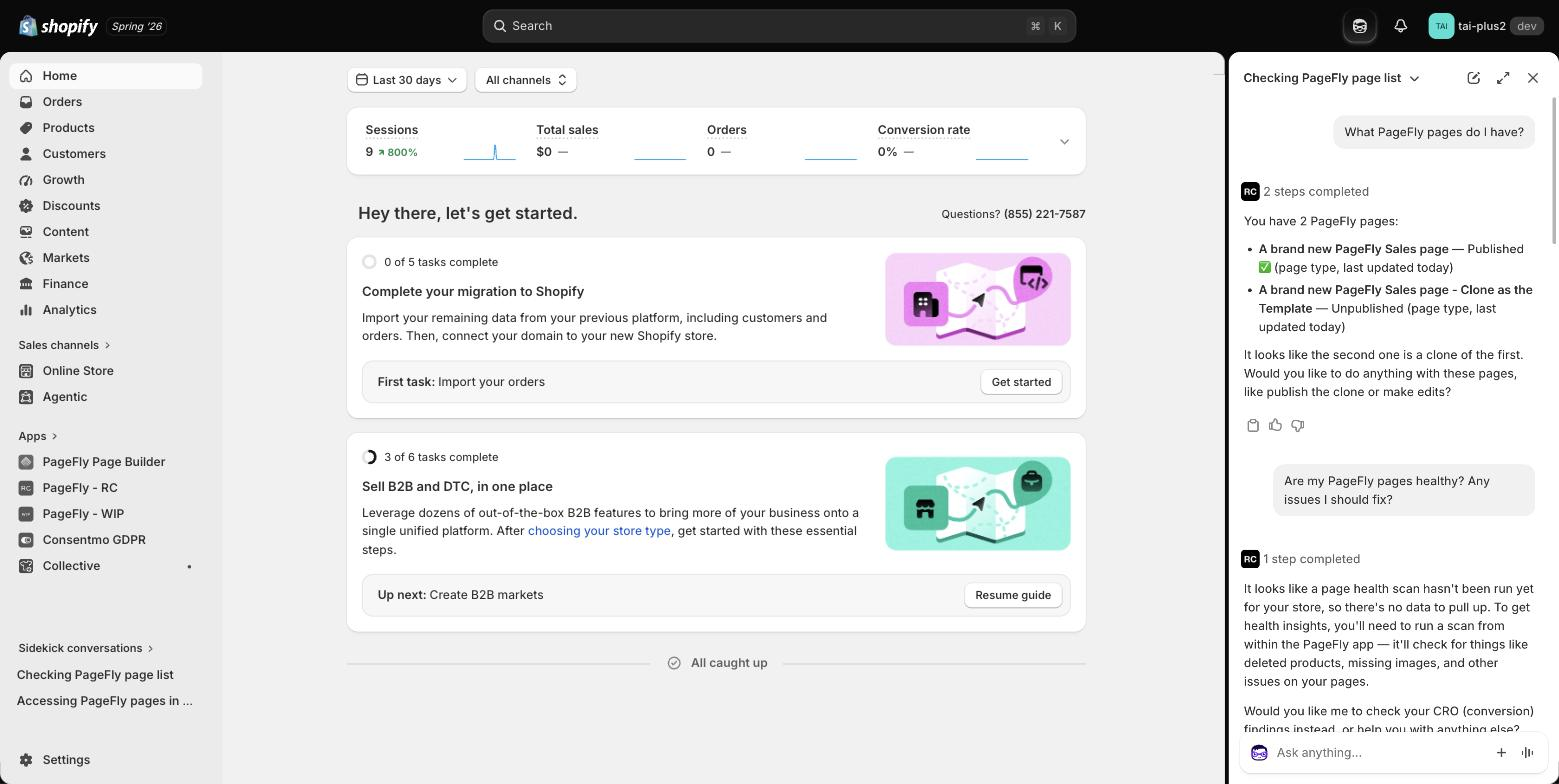
Asking about page health with no scan on file was the more interesting test. Sidekick did not guess and did not error — it said no scan had been run yet and told us to run one inside PageFly. For anyone who has watched an AI tool confidently invent a number, that restraint is the feature.
Asking two things at once — "How are my A/B tests going, and what CRO issues do my pages have?" — Sidekick answered "let me check both at the same time", called both tools, and came back with one summary: no A/B tests set up yet, and our published sales page scoring 88/100 with no critical issues, its single flagged issue being a missing FAQ section.
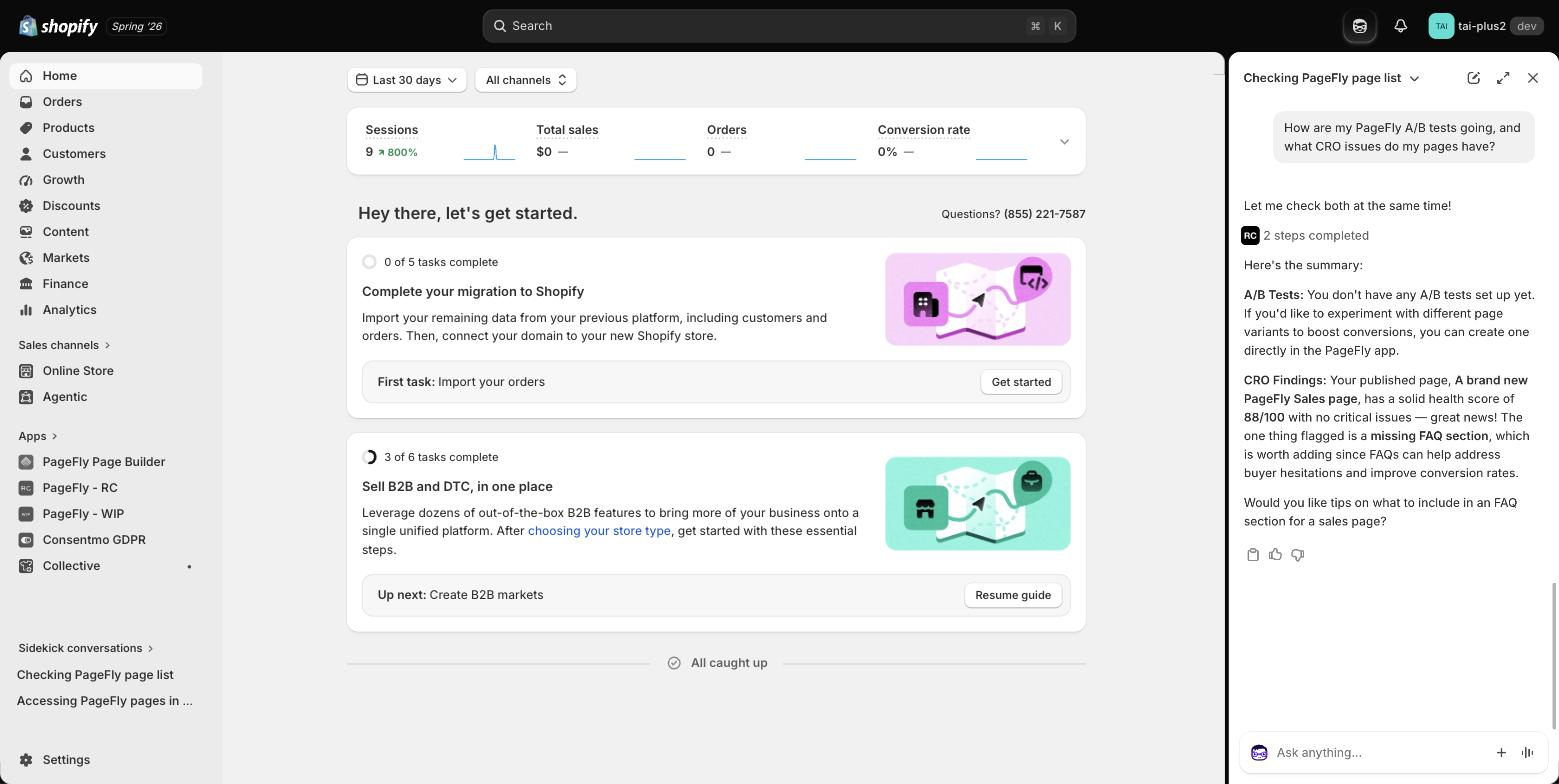
A "missing FAQ section" flag is a small thing that matters twice over: FAQs answer buyer hesitation before checkout, and they are one of the formats AI assistants quote most when they recommend a store — which is the whole game in Shopify GEO. Worth fixing on a page already scoring 88.
What the integration cannot do yet
Being straight about this is more useful than a feature list.
- It cannot edit, publish or delete a page. From Sidekick, PageFly builds new pages only. To change a page you already have, open it in the PageFly editor, where FlyMate edits its sections. Publishing, unpublishing and deleting stay with you.
- It does not build every page type. You get a landing page or a PageFly product page. Home, collection and blog pages are built in the PageFly editor.
- It reports scans, it does not run them. No page-health or CRO checkup result exists until you run one in PageFly.
- Plan gating is real. Page health and CRO findings depend on your PageFly plan and entitlements. Not included, or never run? You get an empty answer, not an error.
- Six results, max. Larger stores should ask by page type — "list my product pages" — instead of "list everything".
- If Sidekick does not seem to see your PageFly data, move off the PageFly app screen and ask again from elsewhere in the admin. There is a known Shopify-side issue where an app's Sidekick tools can fail while the merchant is sitting on that app's own page.
How to try it on your store
Four steps to your first answer. The screenshots below are from our own admin.
- Install or open PageFly. Nothing else to switch on — the Sidekick tools ship with the app. (PageFly Help Center if you are starting from zero.)
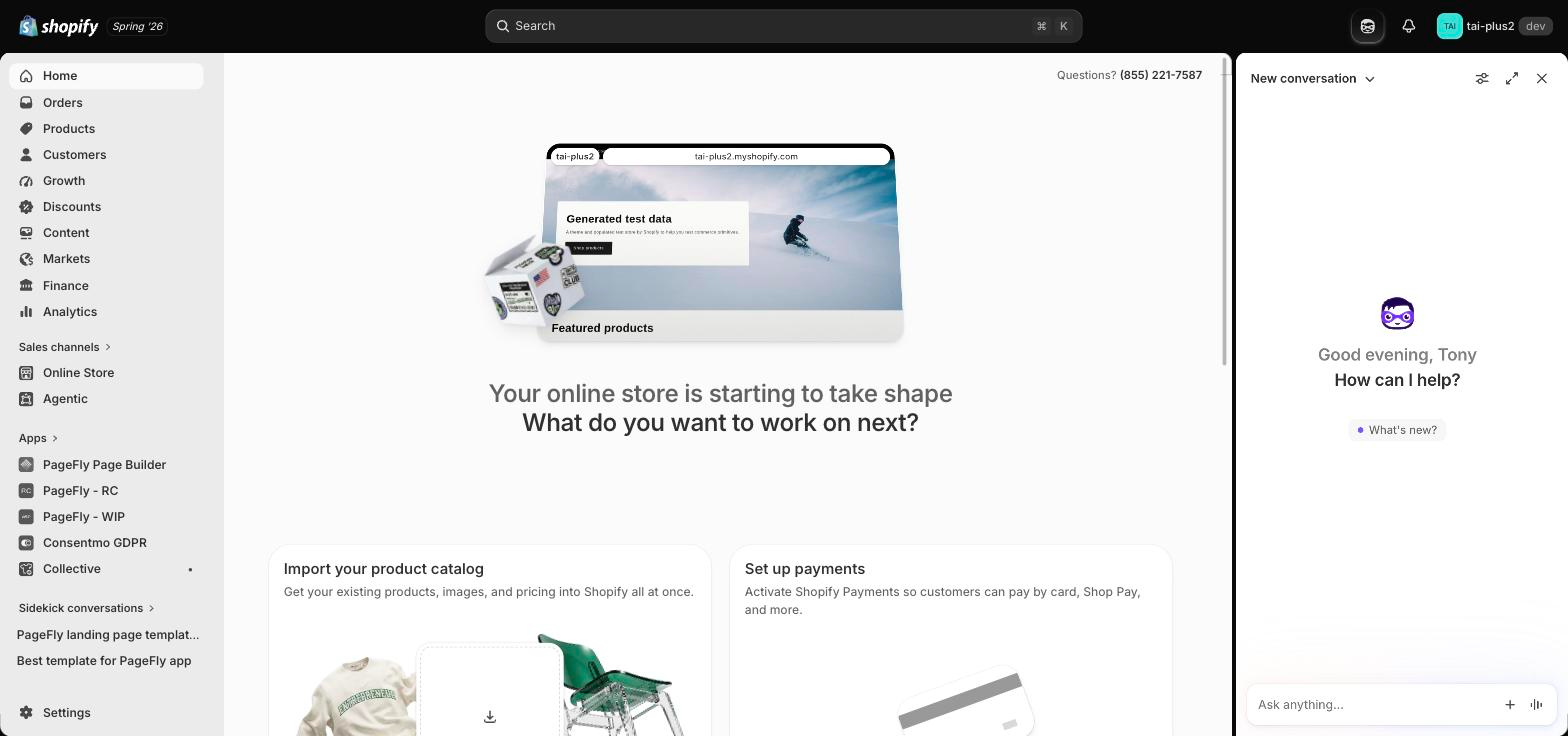
- Open Sidekick from the icon in your Shopify admin top bar, next to the notification bell. The panel slides in on the right.
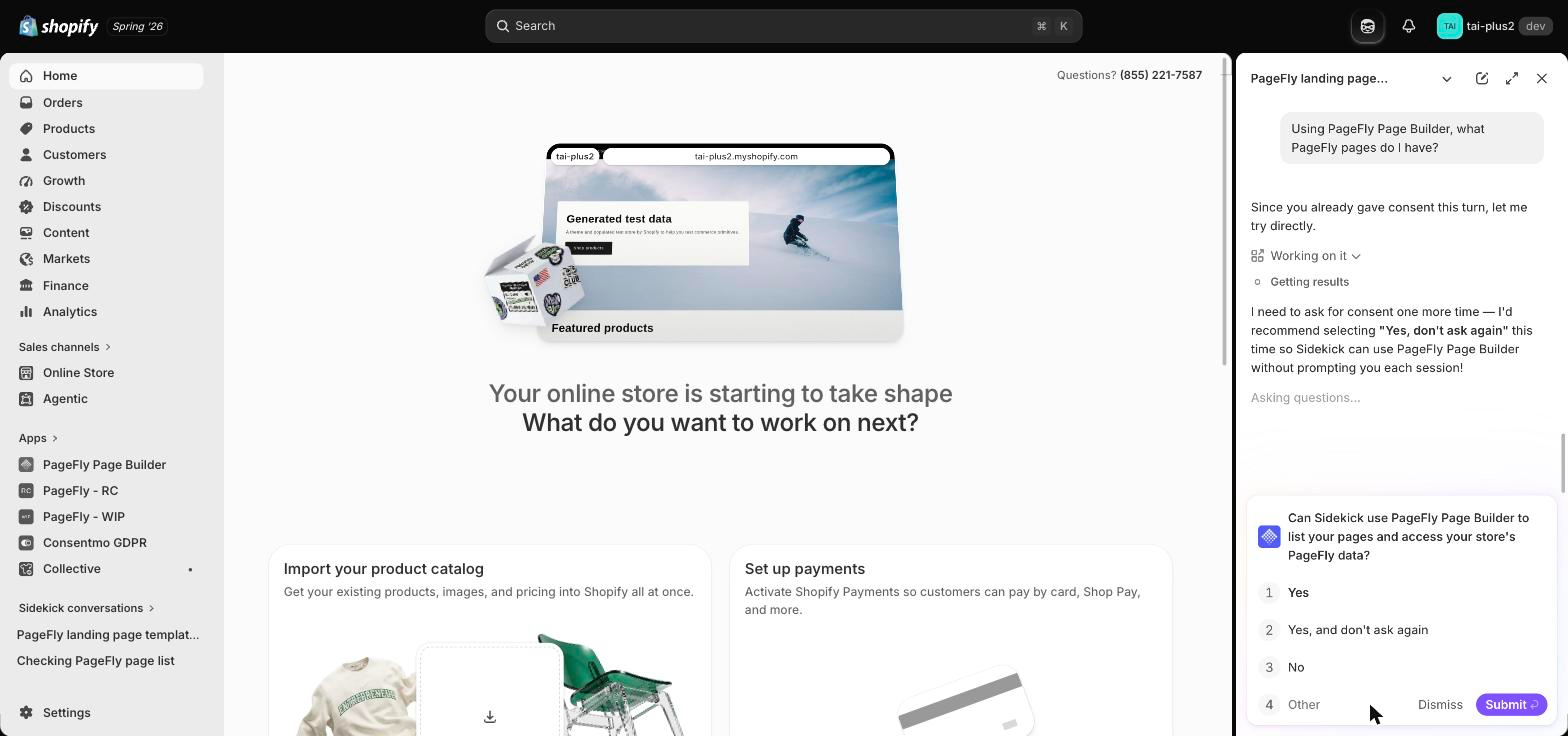
- Approve the permission prompt, and pick the right option. The first time you ask something about PageFly, Sidekick checks with you: "Can Sidekick use PageFly Page Builder to list your pages and access your store's PageFly data?" Sidekick itself recommends "Yes, and don't ask again" so it does not have to prompt you again each session.
- Ask. Start with templates if your store is new — "show me PageFly landing page templates for a sale" needs no pages at all. Otherwise go straight at your own store: "what PageFly pages do I have", "which of my pages are published", "how can I improve conversions on my pages", "which variant is winning". Or ask for a new page: "create a landing page for this product with PageFly".
If Sidekick says there is no data, run a page-health scan or a CRO checkup in PageFly first, then ask again. New to experiments? Start with Shopify A/B testing.
Then act on what you get. Sidekick hands you the finding; you make the change in PageFly — most often on a landing page.
Why this matters beyond a page list
Merchants are starting to run their stores by asking, and stores are starting to be discovered the same way — see agentic commerce and Shopify AI agents. A page builder an assistant can read, and build with, is a page builder that shows up in those answers.
The first release in August was read-only. Building arrived in September 2026. We will say more when there is more that is shipped and tested.
Building pages in PageFly? See how the visual editor works.
Pagefly Shopify Sidekick FAQ
It connects PageFly to Shopify's AI assistant in two ways. Ask Sidekick about your PageFly pages, page health, CRO findings and A/B tests, or ask it to build a new PageFly page. The six question tools are read-only; a build adds one new, unpublished page.
Yes, since September 2026. Ask for the page and mention PageFly, for example "create a landing page for this product with PageFly". Sidekick writes the brief, opens the PageFly editor, and the page is built section by section. It is saved unpublished, and you publish it yourself.
No. It comes with PageFly and needs no setup. Asking questions costs nothing. Building a page uses AI credits, the same as a FlyMate build in PageFly.
Which PageFly pages you have and whether they are published, your latest page-health scan, your CRO checkup findings and health scores, and the status and winning variant of your A/B tests. You can also ask it to find PageFly templates or help articles.
Yes. Ask in plain language, for example "show me PageFly landing page templates for a sale", and Sidekick returns up to 6 templates with descriptions and links. Say "section" to search section templates instead of whole pages. It works on a brand-new store because it searches PageFly's public catalog, not your store.
Page health and CRO findings only exist after you run a scan or checkup in PageFly, and some features depend on your plan. Sidekick returns an empty answer instead of guessing a number.
Yes. The first time you ask something about PageFly, Sidekick shows a permission prompt. Choose "Yes, and don't ask again" — Sidekick recommends that option itself so it does not need to prompt you again each session.
Ask from somewhere other than the PageFly app screen. There is a known Shopify-side issue where an app's Sidekick tools can fail while you are on that app's own admin page.
No. From Sidekick, PageFly builds new pages only: a landing page or a PageFly product page. To change a page you already have, open it in the PageFly editor and use FlyMate. Publishing, unpublishing and deleting stay with you.