





Since Shopify shipped copy and paste in the theme editor, you can lift a section off your home page and drop it onto any other page in a few clicks. What you cannot do is keep the two in sync. Copy is not sync — and almost every complaint merchants have about Shopify sections traces back to that one sentence.
The reason is architectural, and Shopify states it plainly in its developer docs: "You can't share section data across JSON theme templates." A section is not an object you own and place. It is a row inside one template's JSON file. That is why the same block of content has to be rebuilt on every page, why it vanishes when you switch themes, and why merchants were still asking about it in a June 2026 community thread.
This guide covers what a section actually is in 2026, which pages accept them, how to add and rearrange them, the four real ways to reuse one, what AI can and cannot generate for you, and the exact limits — 25 sections per template, 50 blocks per section — that nobody else publishes together.
The short version
- A section is a reusable Liquid module that merchants can add, reorder and remove in the theme editor — but its content is stored per template, not globally.
- Sections work on almost every page type now — home, product, collection, page, blog, article, cart, search, 404 and password. Not gift card, customer accounts or checkout.
- Your plan doesn't decide what you get; your theme architecture does. Vintage, Online Store 2.0 and theme-blocks themes each unlock a different feature set.
- There is no native "saved section" in Shopify. Four things exist instead: copy/paste, alternate templates, metafields, and header/footer section groups.
- AI generates the content, not the reuse. Shopify Magic generates theme blocks; Sidekick adjusts settings on sections already on the page.
- The hard ceilings: 25 sections per template, 50 blocks per section, 1,250 blocks per template, 8 nesting levels, 300 theme block files.
What is a Shopify section?
A Shopify section is a reusable module of content — a slideshow, an image with text, a featured collection — that you can add, reorder, hide and remove from a page in the theme editor without touching code. In the theme's file structure it is a Liquid file living in the sections/ folder. Shopify's sections documentation defines it as follows: "Sections are Liquid files that allow you to create reusable modules of content that can be customized by merchants."
Sections are what turned Shopify theme editing from a developer job into a merchant job. Simon Heaton, writing on the Shopify Partners blog when the feature launched, put it in the sentence that still explains it best:
"Think of Shopify sections as individual, customizable components of a theme. Within each section, you or your client can easily add, reorder, and remove chunks of content such as products, slideshows, videos, or collections."
— Simon Heaton, Shopify, Shopify Partners blog
Section vs block vs template vs snippet
These four words get used interchangeably in forum threads and they mean four different things. Getting them straight saves an hour of confusion in the Shopify theme editor.
The short version: a template holds sections, a section holds blocks, and a snippet holds code that merchants never see. Only the middle two are things you arrange by hand.
| Thing | What it is | Where it lives | Editable in the theme editor? |
|---|---|---|---|
| セクション | A reusable module you add to a page | sections/*.liquid | Yes — add, reorder, hide, remove |
| Block | A smaller piece inside a section (a text block, a button, an app block) | blocks/, or defined inside one section file | はい |
| テンプレート | The wrapper that decides which sections a page type renders | templates/*.json | Chosen from a dropdown |
| Snippet | Reusable Liquid code with no merchant settings | snippets/ | いいえ |
One incompatibility trips people up constantly, and it is documented in sections and blocks: "A single section can accept either theme blocks or section blocks, but not a mixture both." That is the reason a slide block refuses to move into an image banner. It is not a bug and it is not your theme misbehaving.
Which pages can have sections in 2026?
"Sections on every page" — Shopify's own name for what merchants call sections everywhere — arrived with Online Store 2.0 and a new JSON template format. The list below is taken from Shopify's Theme Store requirements, which mandate JSON templates for each of these page types.
| Page type | Sections supported? | Typical use |
|---|---|---|
| ホーム | はい | The store home page |
| 製品 | はい | Product page customization |
| Collection · list of collections | はい | Collection page design |
| Page · contact page | はい | About, FAQ, Shopify pages |
| Blog · article | はい | Blog index and post layout |
| カート | はい | Cart page, distinct from a cart drawer |
| Search · 404 · password | はい | Often forgotten, fully editable |
| Gift card · customer accounts · checkout | いいえ | Checkout is customized differently |
The Theme Store requirements state the exception directly: "All templates must support sections (JSON templates), with the exception of Customer Account pages, Gift Card pages, and Checkout, which don't need to support sections."
There is a catch worth knowing before you blame the platform. Shopify warns that "In limited cases, some parts of your theme might support features that others don't" — a partially migrated theme, or a theme bought outside the Theme Store, can support sections on the product template and not on the collection template. The page type is rarely the limit. Your theme is.
Step 1 — Find out which theme architecture you have
This is the single most decisive fact about what you can do with sections, and it has nothing to do with your Shopify plan. Shopify's Help Center now describes three architecture tiers, not two.
- Open your admin and go to Online Store > Themes. Note the button label: it is Edit theme, not "Customize". Most tutorials still say Customize.
- Read your theme name and version. A free Shopify theme still on version 17.x, like Debut, is a vintage theme. Horizon-family themes are the newest tier.
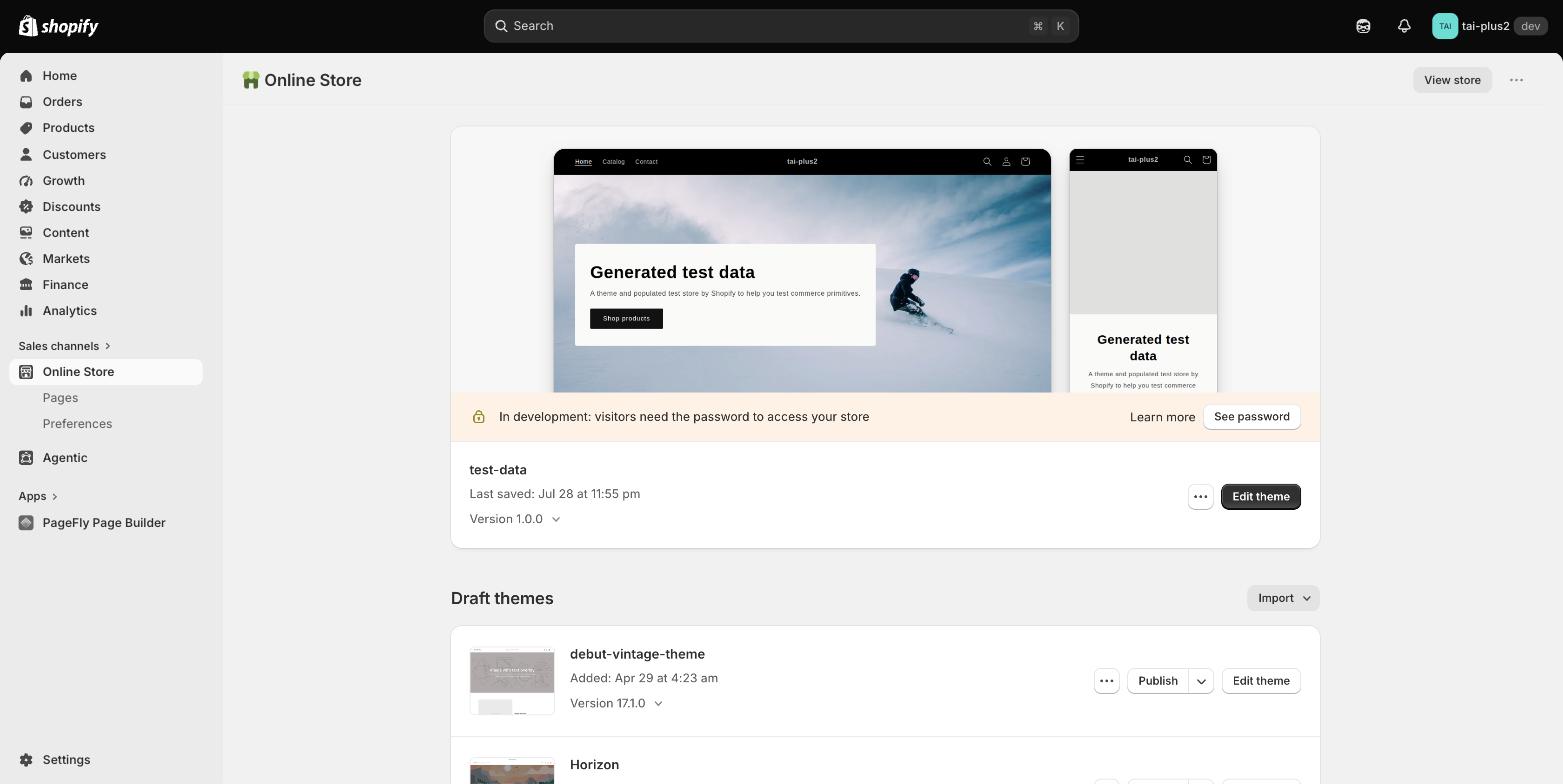
Step 1 — Online Store > Themes on a test store, showing the Edit theme button plus two draft themes side by side: debut-vintage-theme 17.1.0 and Horizon. Tested first-hand by PageFly, August 2026.
- Run the 60-second check. Open the theme editor, switch the template dropdown to Products > Default product, and look for an Add section button under the section list. If it is there, your theme supports sections on every page. If it is not, you are on a vintage theme.
- For the newest tier, check for a blocks folder. Shopify's rule: "If there's a blocks directory in the sidebar of the liquid editor, then you're using a theme that supports theme blocks."
| Architecture | Sections on every page | Create new templates | App blocks | Dynamic sources | Theme blocks |
|---|---|---|---|---|---|
| ヴィンテージ | No — home page only | いいえ | いいえ | いいえ | いいえ |
| Online Store 2.0 | はい | はい | はい | はい | いいえ |
| Theme blocks (Horizon family) | はい | はい | はい | はい | はい |
Two consequences follow. Shopify's free vintage themes "don't receive updates beyond security fixes" and are no longer sold in the Theme Store, so a vintage store is on a dead-end branch. And updating Dawn will never turn Dawn into a theme-blocks theme — architecture upgrades require a new theme, which is why Horizon shipped as ten new free themes rather than as a Dawn update. If you are weighing that jump, our roundup of Shopify 2.0 themes is the practical starting point.
Step 2 — How to add, reorder, hide and remove a section
Everything in this section is no-code and reversible until you press Save. The labels below are the current ones in Shopify's Help Center.
Before you start, duplicate the theme if the store is live. A draft theme costs nothing and it is the difference between an experiment and an incident.
- Open Online Store > Themes > Edit theme.
- Pick the page you want to edit from the template dropdown in the middle of the top bar — it reads Home page until you change it. This dropdown is the control merchants miss most often; it is also where Create template lives.
- Click ⊕ Add section in the sidebar, then choose from the list or type into Search sections. Presets are grouped into collapsible preset categories, so the picker looks different from older screenshots.
- Edit the section's settings, then click ⊕ Add block to add pieces inside it.
- Reorder by dragging the handle that appears when you hover a section name. Hide with the eye icon. Remove with the delete icon, or open the section and click Remove section.
- Duplicate by right-clicking the section name and choosing Duplicate — a genuinely hidden affordance, since nothing on screen suggests a context menu exists.
- Save. Undo and redo live in the top bar, but once you save, "you can no longer redo or undo."
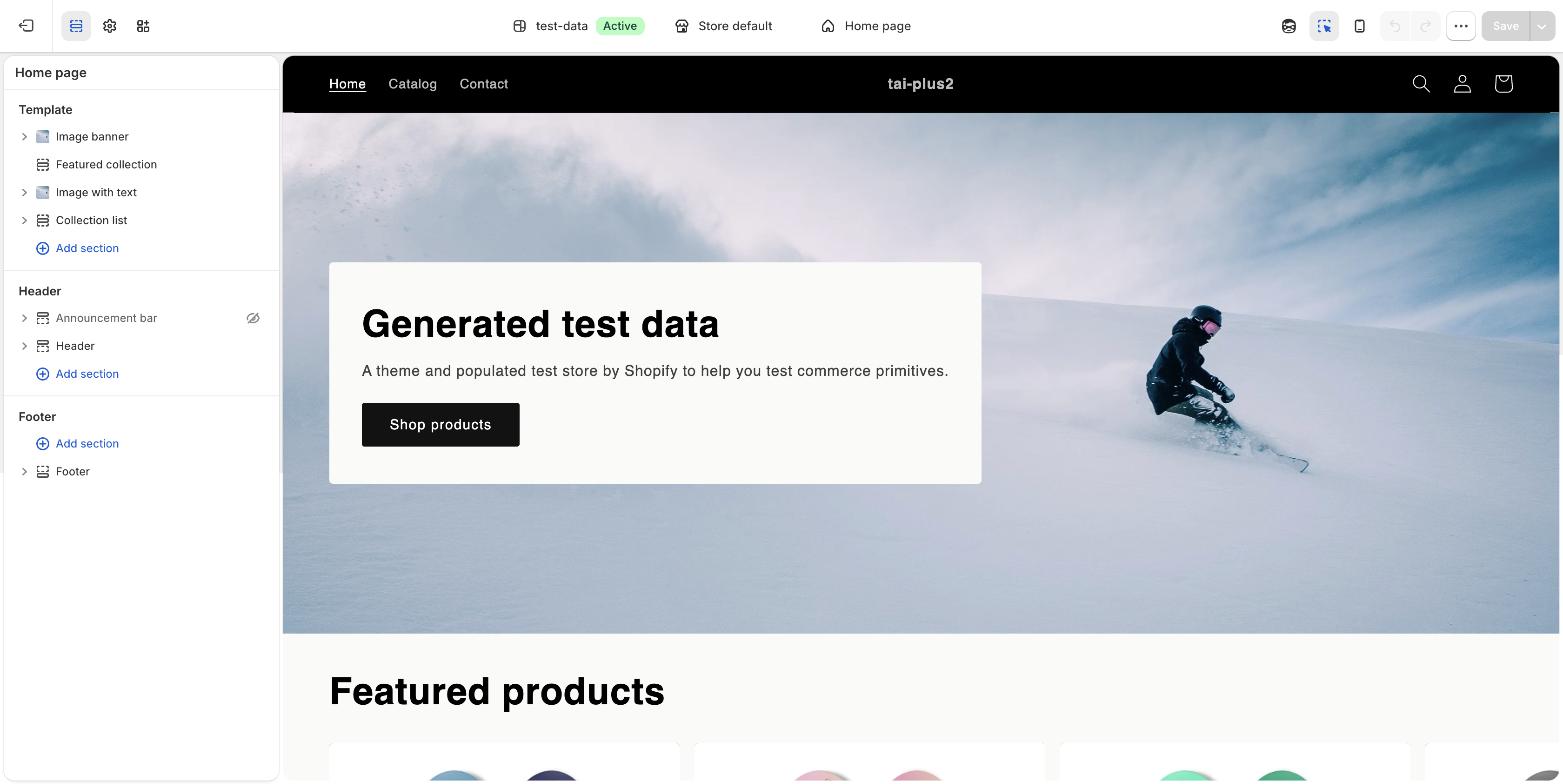
Step 3 — the theme editor sidebar. Note the three groups: Template holds this page's sections, while Header and Footer are section groups shared across every page. The eye icon on Announcement bar shows it is hidden. Tested first-hand by PageFly, August 2026.
Two behaviours in that sidebar are worth naming, because both generate forum threads. First, a dragged section that "snaps back" is not a glitch — Shopify's docs say that if you move a section or block to an invalid location, "it will return to its original position." Second, once you delete a default block, the inline "+" that restores it only appears on hover at the section's edge. A merchant on the Shopify Community found it after half an hour and summed the design up as: "You have to hover with your mouse over at the end of the section and if you hit the right pixel the ' + ' appears."
 See how a sticky section is built →
Copy is not sync: the 4 real ways to reuse a section
This is the question merchants actually arrive with, and it has been asked continuously since 2021. One Shopify Community member framed it about as clearly as a feature request can be framed:
"Not a question just an 'on my knees pleading' request. I'd LOVE a way to save sections in the theme editor that I use consistently across pages so I don't have to keep building them."
— lc_sullivan, Shopify Community
The honest answer: Shopify has no native saved, global or synced section. Copy/paste produces an independent duplicate — the accepted solution on a June 2026 thread says exactly that: "The copy would be independent." Edit one, and the other does not move.
What exists instead is four mechanisms that answer four different questions. Pick by the question, not by the feature name.
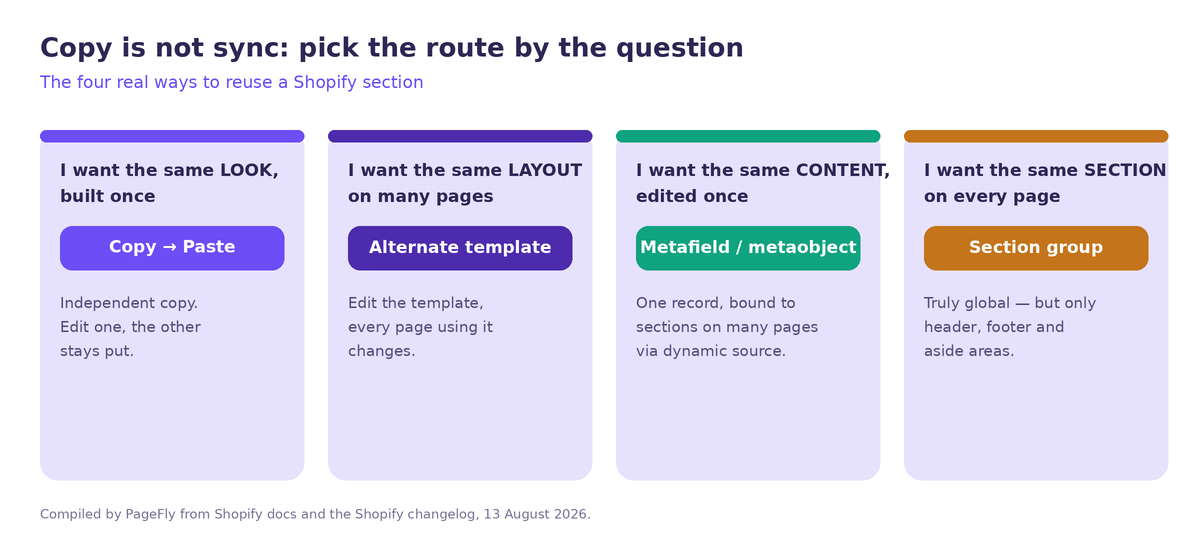
The four routes, by the question each one answers. Compiled by PageFly from Shopify's documentation, August 2026.
| You want… | Use | What you get | Effort |
|---|---|---|---|
| The same look, built once | Copy → paste | Right-click the section title, copy, open the target template, paste. An independent copy. | Seconds, no code |
| The same layout on many pages | Alternate template | One template reused by many pages. Edit the template and every page using it changes. | Minutes, no code |
| The same content, edit once | Metafields or metaobjects | One content record wired into sections on many pages via a dynamic source. | Setup, then free forever |
| The same section on every page | Section group | Truly global and edit-once — but only for header, footer and aside areas. | Built into the theme |
The metafield route is the one most merchants skip and most often need. If a promise bar or a shipping note has to read identically on 30 pages, store the text in a metafield and bind the section setting to it with the dynamic source icon. You then edit the sentence in one place. It is the same mechanism behind announcement bars that stay consistent store-wide.
Alternate templates are the underused one. If twelve product pages need an identical layout that differs from the rest of the catalogue, build one template and assign it — Shopify's rule is that "when you edit a template, your changes apply to every page that uses the template."
Section groups deserve a mention of their own. They are the only place Shopify hands you a genuinely global section, and Shopify's guidance is to keep them narrow: "In most themes, you should use section groups for only the header and footer." That is why your mega menu updates everywhere at once and your hero section does not.
Where PageFly fits: build a section once, sync it everywhere
If none of those four routes fits — you want a section that looks the same and stays in sync on ten pages — that is the gap a Shopify page builder fills. PageFly, a Shopify page builder, stores the layout in the app rather than inside each template's JSON file, which is what makes cross-page syncing possible at all.
The feature is called Saved Section, and PageFly's own Sections screen states the promise in four words:
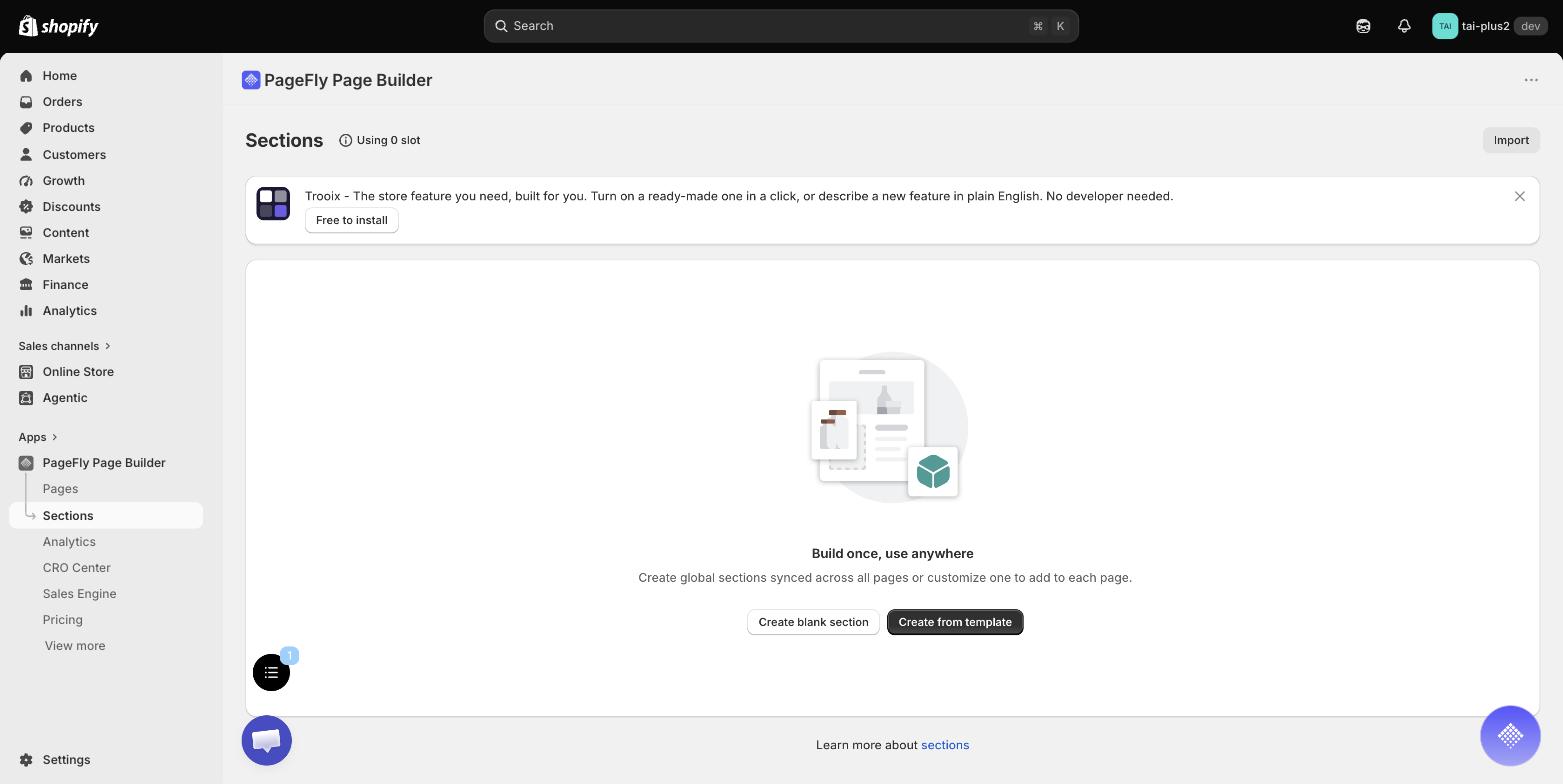
The PageFly Sections screen: "Build once, use anywhere — create global sections synced across all pages, or customize one to add to each page." Note the slot counter in the header. Tested first-hand by PageFly, August 2026.
The behaviour that matters is the sync. PageFly's documentation answers it as an FAQ, verbatim: "If I edit a Saved Section, will it update everywhere I've used it?" — "Yes, any changes made to the original Saved Section will automatically sync across all instances where you've added it to your pages." When you need one instance to diverge, you unsync it from the Global section panel and it stops following the original.
How a PageFly section gets into your Shopify theme
- In PageFly, open Sections and choose Create blank section or Create from template. You can also save a section out of an existing PageFly page.
- Build it, then Save and — this step is easy to miss — Publish it. Draft saved sections do not appear anywhere in Shopify.
- In Shopify admin, go to Online Store > Themes and open the theme editor.
- Click Add section and search for PageFly section.
- Select it, pick your saved section from the Sections dropdown, and Save.
Three limits worth knowing before you plan around it, all from PageFly's own docs. The flow is documented for Online Store 2.0 themes. PageFly sections work with the published theme, not a draft one. And the pricing model counts published slots, not sections — a published page and a published section each consume one slot, so "how many sections can I have" is really "how many slots does my plan include." Current slot and credit figures are on the PageFly pricing page.
Read this as one option among the four native routes rather than a replacement for them. If header and footer cover your case, section groups are free and native. If you need the same promise-bar text on 30 pages, a metafield is free and native. An app earns its place specifically when you want a designed, multi-element section that stays synchronised across pages Shopify treats as unrelated templates.
Can AI build a Shopify section for you?
Short answer: AI will generate the content of a section quickly, and none of the current tools generates the reuse. Knowing which tool does which saves a wasted afternoon.
Shopify Magic generates theme blocks, not sections
Shopify's native generation feature is AI generated theme blocks. In the theme editor you select a section, click Add block, choose Generate, describe what you want, then Keep it. The output is a block. When you generate into a new area, Shopify wraps the generated blocks in a platform-generated section by default — the section wrapper is Shopify's doing, not yours.
Two availability facts are recent enough to matter. On 10 December 2025 Shopify expanded block generation from Horizon themes to every theme in the Theme Store. And the feature is gated: available on Free trial, Basic, Growth, Advanced and Plus, not available on the Starter plan, and not available on vintage themes. Shopify also states that troubleshooting the code of generated blocks is not covered by Shopify Support.
Sidekick edits what is already there
Sidekick's documented theme scope is narrower than most merchants assume. Shopify's help documentation lists what it can do in the theme editor: apply changes to global theme settings, and "search for and apply changes to settings of sections and blocks that are already on the page." It also requires you to be in the theme editor, and the changes "must be saved by you to take effect."
In other words, Sidekick is a very good way to change a section you already have — colours, text, ranges, checkboxes — and Shopify's documented capability list does not extend to building a new section for you. Since December 2025 you can also click any section or block in the theme preview and ask Sidekick to customise that specific element. Our Sidekick guide covers the wider feature set.
PageFly's AI generates sections — with one important caveat
PageFly has an AI Section Generator with a Prompt Builder for structuring the request, plus a chat editor for revising a generated section by prompt. It is genuinely a section generator rather than a block generator.
The caveat is one PageFly's own documentation states plainly, and it matters for everything above: AI sections are "exclusively available for AI Smart Pages and CANNOT be saved or reused as PageFly global sections." So AI generation and cross-page sync are two separate capabilities today, not one pipeline. If your goal is a synced section, build it in Sections and skip the AI route for now.
Source: Shopify Academy on the official ShopifyDevs channel (August 2025) — Jan Frey builds a theme block from scratch, which is the clearest walkthrough of how blocks sit inside sections.
How to build a custom section
"Custom section" covers two genuinely different levels of effort beyond the AI route above. Pick the lower one that solves your problem.
Low code — the Custom Liquid section
Every Theme Store theme is required to ship one: "Themes must include a Custom Liquid section." It is the sanctioned insertion point for a snippet of markup or a third-party embed, and it needs no file creation. Two things merchants routinely put here: a small block of custom CSS, and an embed a vendor supplied as raw HTML. Keep the snippet short — a Custom Liquid section is a doorway, not a place to build a page.
Code — a real section file
- Duplicate your theme first, so you are working on a draft. Shopify's own bar for this route: "Edit the code for a theme only if you know HTML and CSS, and have a basic understanding of Liquid."
- Open Online Store > Themes > ⋯ > Edit code and create a file in the
sectionsfolder, for examplesections/my-section.liquid. - Write your markup, then add exactly one
{スキーマ %}。block. It must contain valid JSON and cannot be nested inside another Liquid tag. - Include a
presetsarray. This is the step people forget: without presets, the section never appears under Add section. - Optionally scope it with
enabled_on/disabled_on, cap repeats withlimit(only 1 or 2 are accepted), and opt into blocks with"blocks": [{"type": "@theme"}, {"type": "@app"}]. - Save, return to Edit theme, and your preset name will be in the picker.
If you do not have a developer, Shopify's free Theme Access app grants theme-only access "without the need to create a staff account" — a safer hand-off than a full staff login. Our directory of Shopify development services covers what that work typically costs.
Will your sections survive a theme update or a theme switch?
These are two different questions with two different answers, and conflating them is how stores lose a week of work.
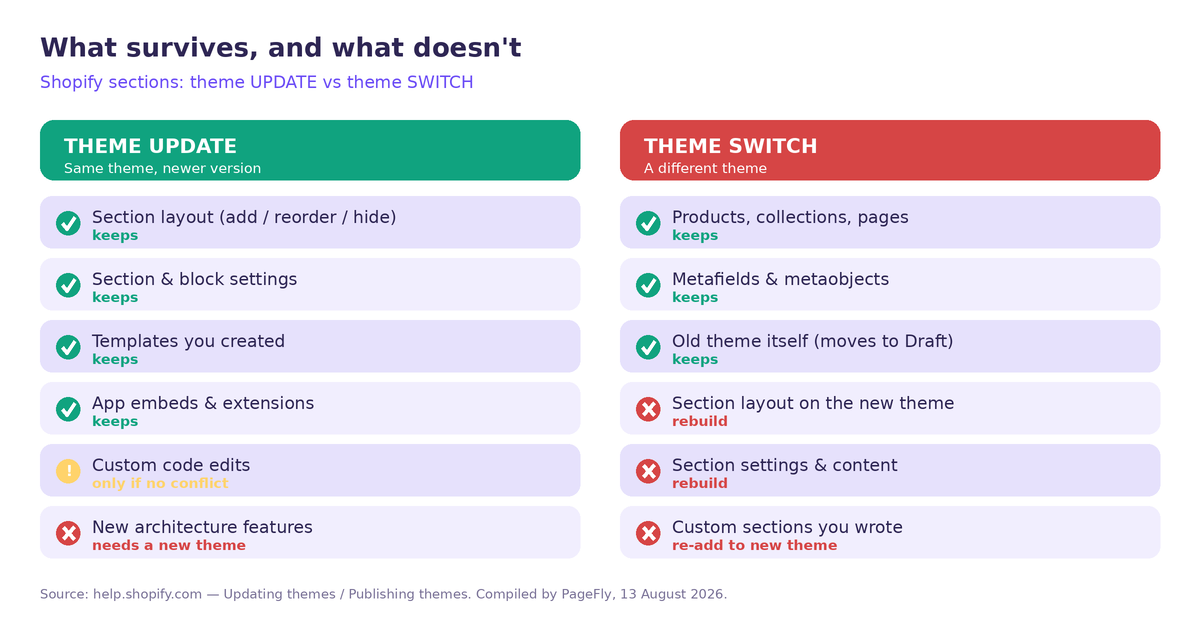
Update versus switch, item by item. Compiled by PageFly from Shopify's theme documentation, August 2026.
A theme update — same theme, newer version — carries your section work over. Shopify's Help Center lists what is copied, and section layout is explicitly on the list: "Altering page layouts, such as adding, reordering, removing, or hiding sections or blocks." Code edits are best-effort: if they conflict, the theme card tells you so, reading either "code edits successfully included" or "code edits could not be included."
A theme switch — a different theme — does not transfer layout. Your old theme is preserved, not migrated: "If you publish a new theme, then your previously published theme moves to the Draft themes section. None of your theme changes are lost." But the section arrangement lived in that theme's own template files, so the new theme starts empty.
The practical rule that falls out of this: content survives a theme switch, layout does not. Products, collections, pages, blog posts, metafields and metaobjects live in your admin. Section settings live in the theme. That is the strongest argument for keeping reusable copy in metafields rather than typed into section settings — and the same reasoning behind keeping page layouts in a builder rather than in theme JSON, which is where building a landing page in an app pays for itself at re-theme time.
The Shopify section limits, exactly
These numbers are published by Shopify on a single theme limits reference and are frequently misquoted elsewhere.
| Limit | Value |
|---|---|
| JSON templates per theme | 1,000 |
| Sections per JSON template | 25 |
| Section groups per theme | 20 |
| Sections per section group | 25 |
| Blocks per section | 50 (a developer can lower this with max_blocks) |
| Blocks per JSON template or section group | 1,250 |
| Theme block nesting depth | 8 levels, excluding the section level |
Theme block files in the blocks/ folder | 300 |
Two clarifications that trip people up. The 300 figure caps block files in the theme, not block instances on your pages. And statically rendered blocks added with {% content_for %} do not count toward these limits at all.
In practice the 25-section ceiling is generous — a heavily built home page on a real store typically runs 12 to 16 template-level sections. The constraint that bites first is page weight, not the counter. Shopify's image_tag filter now sets loading to lazy automatically for images in sections further down the page, and since April 2026 Shopify also subsets stylesheet CSS so each page receives only the CSS for the sections and blocks it actually renders. Both help. Neither makes 25 sections weigh nothing, so if your speed score is sliding, section count is worth auditing before anything exotic.
What's changing next, and where to go from here
オン 21 July 2026 Shopify opened a developer preview adding {% block %} そして {% partial %} Liquid tags, so page structure can live directly in a Liquid template. It is a preview, not a release, and Shopify is explicit that nothing breaks: "Existing themes continue to work with sections, theme settings, and JSON templates. This preview adds a Liquid-first composition model alongside the existing theme architecture." Read it as an additional composition model, not a migration deadline.
A smaller change you may already have: Shopify's Spring '26 edition notes a "better editing experience on laptops — the theme and checkout editors show your sections and settings side by side," the double-sidebar mode that activates at browser widths of 1,600 pixels and above. If your editor suddenly looks different, that is why.
Where to go from here
If you are getting started, the order that wastes least time is: identify your architecture tier, learn the four reuse mechanisms so you never rebuild the same block twice, and only then reach for code or an app.
Merchants who inherit a store often find a theme detector the fastest way to learn what they are actually working with — including whether the previous owner left a vintage theme behind.
If the layout you need does not exist in your theme at all, our roundup of Shopify landing page apps lays out the trade-offs honestly, including where native sections are the better answer. And for decisions that sit above any single section, the companion piece is our store design guide.
Shopify Sections FAQ
A Shopify section is a reusable module of content, such as a slideshow or an image with text, that you can add, reorder, hide and remove from a page in the theme editor without code. In the theme's files it is a Liquid file in the sections/ folder.
Not as a synced section, because Shopify cannot share section data across templates. You have four options instead: copy and paste for an independent duplicate, an alternate template for the same layout, a metafield for the same content edited once, and a header or footer section group for a truly global section.
Up to 25 sections per JSON template, with a maximum of 50 blocks per section and 1,250 blocks per template across all sections. Blocks can nest up to 8 levels deep, and a theme can hold up to 300 theme blocks.
No. Adding, reordering, hiding, removing, duplicating and copying sections are all no-code actions in the theme editor. You only need code to create a brand new section file, and on Horizon-family themes you can generate a theme block by prompt instead.
Yes for theme-editor changes. Shopify copies over theme settings and page layouts, explicitly including adding, reordering, removing and hiding sections and blocks. Code edits carry over only if they do not conflict, and features that need a newer theme architecture are not applied.
Usually because the theme is a vintage theme, which supports sections on the home page only. Check by opening the theme editor, switching the template dropdown to Products, and looking for an Add section button. If a default block was deleted, the inline plus control only appears when you hover at the edge of the section.