





Most Shopify stores still send shoppers to a separate cart page. They click "Add to cart," the page reloads, and the momentum they had while browsing is gone.
A cart drawer removes that page. It slides in from the side, shows what's in the bag, and lets the shopper keep browsing or go straight to checkout. Shopify supports it natively — the theme editor has a Cart type setting with three options: Drawer, Page, or Popup notification (Shopify Help Center).
Here's the shift worth noticing. Search demand for the generic term "shopify cart drawer" is down 18% year over year, while "shopify cart drawer app" is up 400% (Google Keyword Planner, US/UK/CA/AU, Jul 2025–Jun 2026). Merchants have stopped asking how do I build one and started asking which one should I use. The drawer graduated from a design detail to a conversion surface people are willing to pay for.
- A cart drawer is a slide-out panel that replaces the cart page — shoppers review the bag without losing their place.
- Shopify has it built in. Theme editor → Theme settings → Cart type → Drawer. Free, on every plan, about 5 minutes.
- The native drawer is deliberately plain. No upsells, no free-shipping progress bar, no bundles — that's where an app or custom code comes in.
- Treat it as a waiting room, not storage. Progress, reassurance, and one relevant offer. Anything else is a distraction between add-to-cart and checkout.
- PageFly shipped a Cart Drawer builder (CRO Center → Cart Drawer) on the Optimize plan — AI, 17 templates across 9 verticals, or a blank canvas, with drawer opens, conversion rate and revenue tracked per drawer.
What is a Shopify cart drawer?
A cart drawer is a slide-out panel that shows the contents of a shopper's cart without navigating away from the page they're on. It's also called a slide cart, side cart, or mini cart. It opens when someone clicks the cart icon or adds a product, and closes to put them right back where they were.
The mechanics are simple. The value isn't in the panel — it's in where it sits. A cart drawer isn't a mini cart, it's the checkout waiting room: the last screen a shopper sees before they either commit or leave. Everything you put in it either raises the order value or costs you the sale.
That framing settles most design arguments. A waiting room needs three things — a sense of progress, reassurance that this was a good decision, and at most one relevant offer. It does not need a wall of recommendations, three competing buttons, or a countdown timer that makes people feel hunted.
Cart drawer vs cart page: which converts better?
Neither wins automatically. They fail differently, and the right choice depends on how people shop your catalogue.
| カートの引き出し | Cart page | |
|---|---|---|
| Shopper stays on the page | はい | No — full page load |
| 最適 | Multi-item browsing, impulse categories, mobile | Complex carts, B2B, heavy configuration |
| Room for detail | Limited — panel width | Full page for notes, shipping estimates, terms |
| Upsell placement | Natural, in-flow | Present but after the interruption |
| Risk | Cramming too much into a narrow panel | Losing browsing momentum at the reload |
| Shopify plan needed | Any — all plans | Any — all plans |
| コスト | Free natively | Free natively |
The practical rule: if your average order contains more than one item and shoppers browse a lot before deciding, the drawer usually wins because it protects momentum. If your cart needs real estate — bulk quantities, purchase orders, custom fields — the page is the honest choice. Some stores run both: drawer on add-to-cart, page on the cart icon.
3 ways to add a cart drawer to your Shopify store
Three routes, and they differ on exactly the things merchants filter for.
| Method | Skill needed | Time to live | コスト | カスタマイズ | 最適 |
|---|---|---|---|---|---|
| Shopifyテーマエディター | なし | ~5 min | 無料 | Basic — colors, empty-state collection, vendor, cart note | Getting a drawer live today |
| Cart drawer app / builder | なし | ~10–20 min | Free tier to paid plans | Full — upsells, bundles, progress bars, custom copy | Stores treating the cart as a conversion surface |
| Custom Liquid + AJAX | 開発者 | 30+ min | Dev time | 無制限 | Bespoke themes and edge-case logic |
Method 1 — Turn on Shopify's native drawer (free, ~5 minutes)
This works on every Shopify plan and needs no app.
- Open the theme editor. Shopify admin → Online Store → Themes → Customize.
- Open Theme settings. Click the gear icon in the left sidebar.
- Find Cart. Scroll to the Cart section.
- Set Cart type to Drawer. The dropdown offers Drawer, Page, or Popup notification.
- Set the empty state. On Dawn, click Select collection under Cart drawer to show a collection when the cart is empty — this turns a dead end into a browsing prompt.
- Adjust the details. Change the drawer's Color scheme, toggle Show vendor, and enable Cart note if shoppers need to leave order instructions.
- Save, then add a product on your storefront to confirm the drawer opens.
All of these settings are documented in the Shopify Help Center theme settings guide.
What you get is a clean, functional drawer. What you don't get is anything that raises order value: no upsell block, no free-shipping progress bar, no bundle offers, no custom copy beyond the theme's defaults. For many stores that's fine. For stores where the cart is a real revenue lever, it's the floor, not the ceiling.
Method 2 — Use a cart drawer builder
This is the route the +400% search growth is pointing at. A page builder with a drawer module gives you the drawer plus the conversion elements, without touching Liquid. See the PageFly section below for how one works end to end.
Method 3 — Build it in Liquid
If you have a developer and a bespoke theme, a custom AJAX drawer gives you total control over markup, animation, and logic. It's the most work and the most maintenance — every theme update is a regression risk. Worth it only when methods 1 and 2 genuinely can't express what you need.
What to put in a cart drawer (and what to leave out)
Back to the waiting room. Here's what earns its place, roughly in priority order.
- A progress cue. A free-shipping threshold bar is the highest-leverage element in most drawers because it names a specific, achievable reason to add one more item. "You're $12 away from free shipping" does work that a generic "You may also like" never does.
- Editable quantities. Let people change their mind inside the drawer. Forcing a trip to a cart page to remove one item is how carts get abandoned.
- One relevant offer. A single, genuinely related product or a bundle. Not a carousel of eight.
- Reassurance. Returns window, secure-checkout mark, delivery estimate. Small text, real reduction in hesitation.
- A single primary button. Checkout. One. Everything else is secondary styling.
And what to leave out: multiple competing CTAs, aggressive countdown timers, discount-code fields that invite shoppers to leave and hunt for a coupon, and recommendation grids that turn the waiting room into another browsing surface. Every one of those adds a decision at the exact moment you want the shopper making only one.
If you're working on cart conversion more broadly, this pairs with Shopify conversion rate optimization fundamentals and with the same discipline you'd apply to a high-converting landing page.
How PageFly's Cart Drawer works
PageFly shipped a Cart Drawer builder, available on the Optimize plan ($39/month, in-app pricing). It lives in the app under CRO Center → Cart Drawer.
We built and tested one on our own demo store, beariestore.com, to see how it behaves in practice.
Three ways to start a drawer
Opening the builder gives you three starting points, and they map onto how strong an opinion you already have about what the drawer should do.
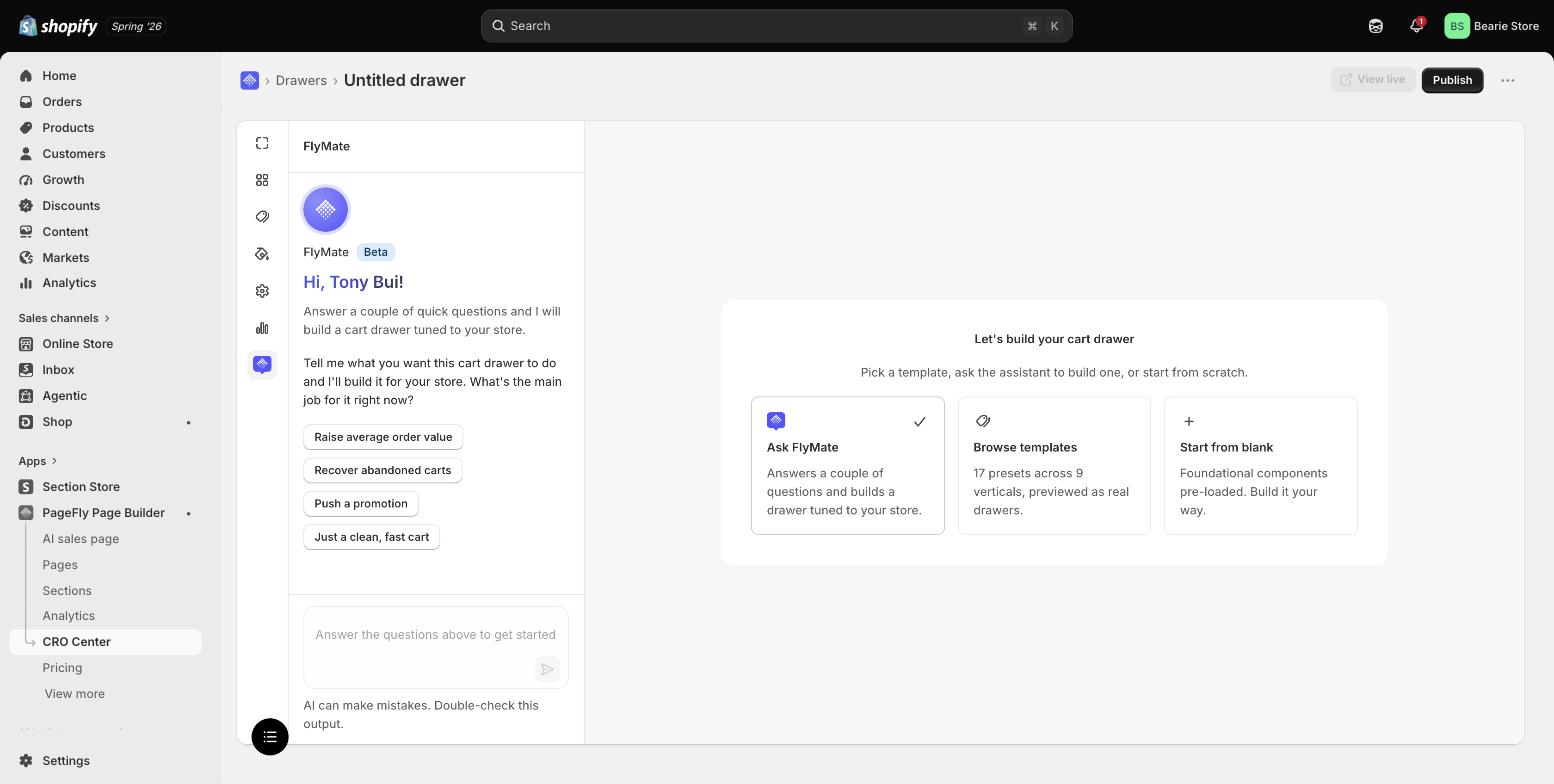
The builder opens on three starting points — the AI assistant, a template library, or a blank canvas. Tested first-hand by PageFly.
- Ask FlyMate. PageFly's AI assistant (in Beta) asks a couple of questions and builds a drawer around the answers. Usefully, it asks about the job rather than the styling, offering the goal as presets: Raise average order value, Recover abandoned carts, Push a promotion, or Just a clean, fast cart.
- Browse templates. 17 presets across 9 verticals — Universal, Fashion, Beauty, Coffee, Flash sale, Supplements, Home, Gifting and Grocery — previewed as real working drawers rather than flat thumbnails, so you can see how one behaves before you commit. Applying a template swaps the whole layout and is undoable, so trying three costs nothing.
- Start from blank. The foundational components come pre-loaded and you arrange them yourself in the drag-and-drop editor.
The vertical presets matter more than they look. A grocery drawer and a fashion drawer want different things — grocery leans on reorder and basket-building, fashion on size confidence and returns — so starting from the right one saves you rediscovering that yourself.
All three land in the same editor, and the drawer stays unpublished until you press Publish — so you can build and preview without touching your live cart.
It's measured, not just styled
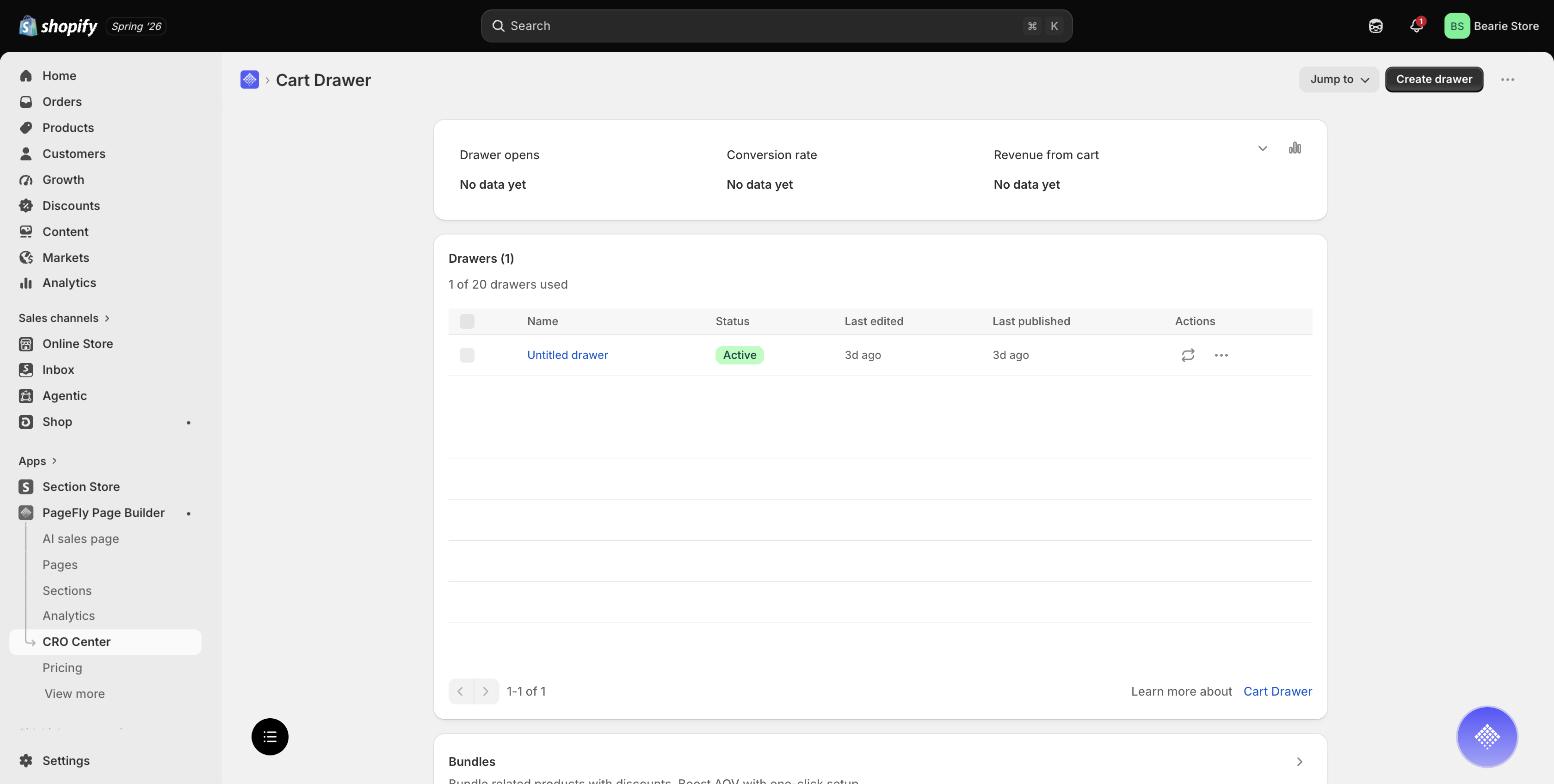
The Cart Drawer dashboard tracks drawer opens, conversion rate and revenue from cart per drawer. Tested first-hand by PageFly.
The dashboard tracks drawer opens, conversion rate, and revenue from cart — so the drawer is treated as a funnel step with its own numbers, rather than a theme setting you change and forget. That matters, because "does the drawer work" is otherwise an unanswerable question, and it's the same reason you'd measure a product page rather than admire it.
You can run more than one. The plan allows up to 20 drawers, each with its own status, last-edited and last-published state, and a duplicate action. Practically, that means a seasonal drawer, a sale drawer, and an everyday drawer can coexist and be swapped without a rebuild.
Bundles are built in. A Bundles module sits alongside the drawer — bundle related products with discounts, set up in one click — which is the offer the drawer needs if you want it to lift average order value rather than just look tidier.
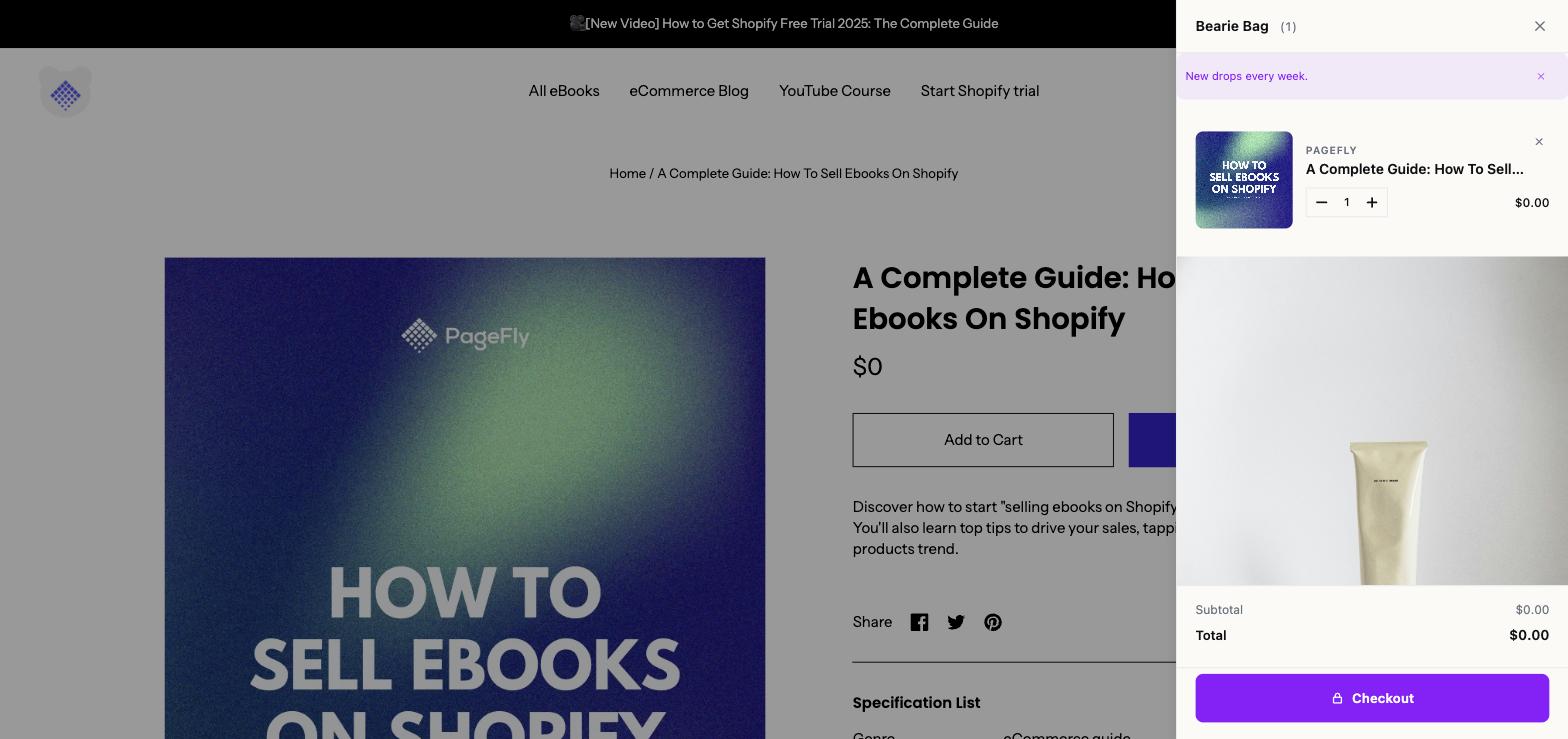
The same drawer on the live storefront: custom title, dismissible announcement bar, inline quantity control, and a single checkout CTA. Tested first-hand by PageFly.
On the storefront, the drawer opens on add-to-cart without a page load. Ours carries a custom title ("Bearie Bag" rather than "Cart"), a dismissible announcement bar, a line item with vendor, inline quantity stepper and remove control, subtotal and total, and one primary Checkout button. The empty state is custom too — heading, subcopy and its own CTA — which is the difference between an empty cart being a dead end and being a prompt.
Build your cart drawer with PageFly
Drag-and-drop or let AI build it. 17 templates across 9 verticals, bundles built in, and drawer opens, conversion rate and revenue tracked per drawer.
Install PageFly free →Already have PageFly? Open Cart DrawerThen open CRO Center → Cart Drawer in PageFly.
If you want to see the editor behaviour before committing, the PageFly visual editor works the same way across pages, sections and drawers — the same drag-and-drop you'd use to customize a product page.
Cart drawer mistakes that quietly cost you sales
Turning it on and never measuring it. A drawer changes behaviour at the highest-intent moment on your store. If you don't have drawer opens and cart revenue in front of you, you've made a change you can't evaluate. If your tooling supports it, A/B test the drawer against your current cart rather than assuming.
Treating it as decoration. A drawer that only restyles the cart won't move revenue. The lift comes from the progress cue and the one relevant offer, not the animation.
Ignoring mobile. Most drawers are used on a phone, where the panel is nearly full-screen and thumb reach decides whether the Checkout button gets pressed. Test on a real device, not just a narrow browser window.
Cramming. The most common failure. Every extra element in a narrow panel costs attention that belonged to the checkout button.
Leaving the empty state empty. "Your cart is empty" is a full stop. A collection or a CTA turns it into a next step — and it's a free setting in Dawn.
The stores that get this right aren't the ones with the fanciest drawer. They're the ones who decided what the waiting room is for, put three things in it, and measured what happened.
Turn your cart into your best-converting screen
Build a Cart Drawer in PageFly — free to install, no code, live in minutes.
Install PageFly free →Already installed? Try Cart Drawer nowThen open CRO Center → Cart Drawer in PageFly.
Shopify Cart Drawer FAQ
A cart drawer is a slide-out panel showing the shopper's cart without leaving the current page. Shopify's theme editor calls it the "Drawer" option under Cart type, alongside Page and Popup notification.
Yes. The native cart drawer is a free theme setting available on every Shopify plan. Apps and builders that add upsells, bundles or progress bars are paid—PageFly's Cart Drawer is on the Optimize plan at $39/month.
None in particular. The native drawer works on Basic, Grow, Advanced and Plus. Plan only matters if you use a third-party builder with its own pricing.
Online Store 2.0 themes like Dawn include the Cart type setting. Older vintage themes may not expose it, in which case you would need an app or custom code.
The drawer usually wins when shoppers browse multiple items, because it protects browsing momentum. The page is better for complex or high-configuration carts. Test both against your own traffic rather than assuming.
Not with the native drawer—it has no upsell block. You need a cart drawer builder or custom code. PageFly's Cart Drawer includes a Bundles module for discounted related products.